 Baselines
 All documentation pages
A document’s page
Open a document from Documents to see its versions on one line, what changed between any two of them page by page, and the card of a version with everything it records.
The header
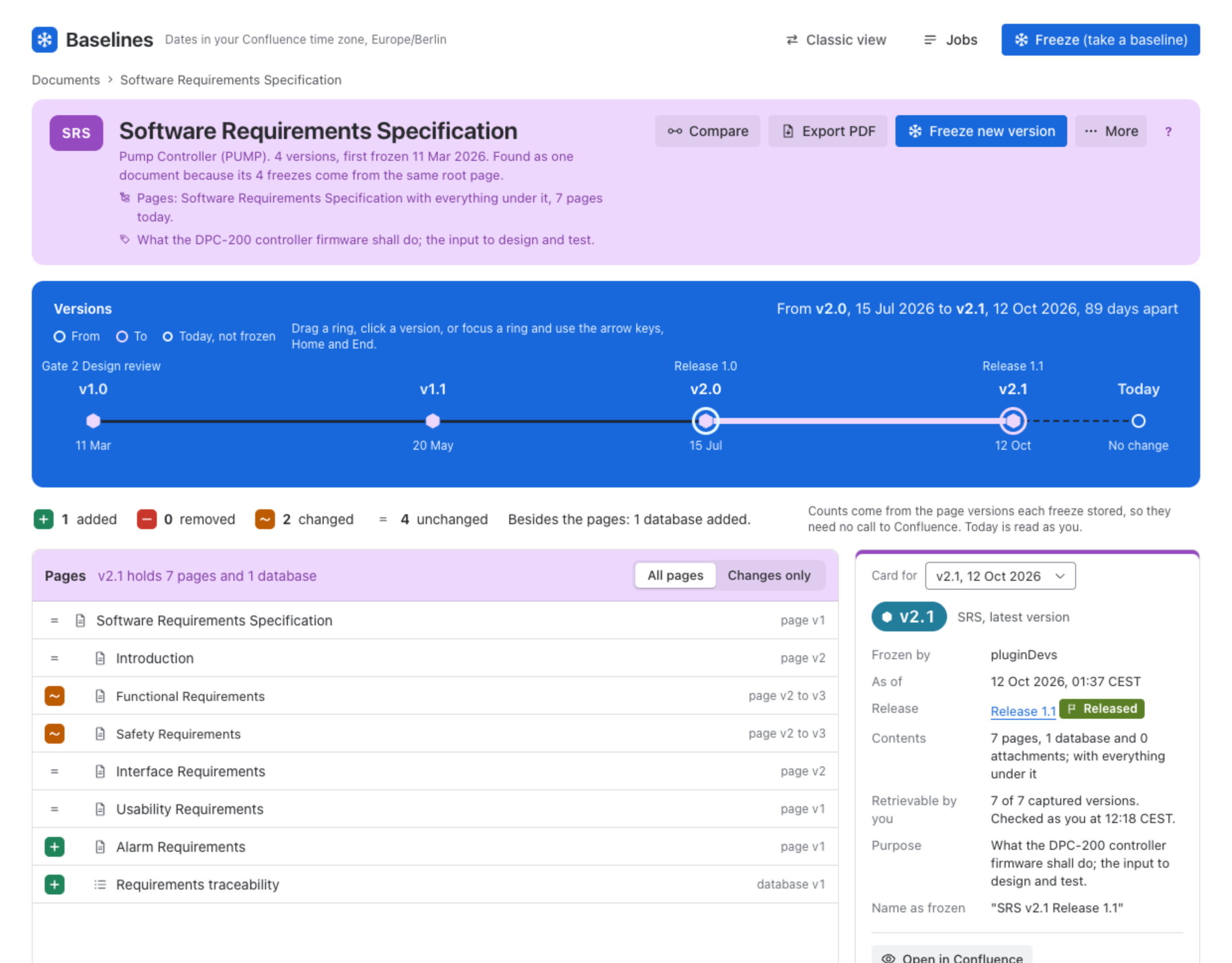
The header shows the document’s chip and name, its space, how many versions it has and when it was first frozen, and why its freezes were grouped as one document. Pages: names its root pages and what comes with them, with how many pages are under them today, and the line under it is its purpose. On the right are Compare, Export PDF, Freeze new version, More and the ?.
Versions and Today
Each mark on the line is a version, with its label, its date and the release it is in above it. Today at the end is the pages as they are now, not frozen, read as you, and says whether anything changed since the latest version. Two rings, From and To, pick the pair the page shows: drag a ring, click a version, or focus a ring and use the arrow keys, Home and End.
Pages
Under the line, four counts say how many pages were added, removed, changed and unchanged between From and To. They come from the page versions each freeze stored, so they need no call to Confluence; only Today is read, as you. The Pages panel lists every page in tree order with its mark and its page versions (page v1 to v2). Changes only hides the unchanged ones.
A page may also say You cannot open this page, when Confluence does not let you open it now, or Version no longer in Confluence, when the captured page version has gone from the page’s history.
The card of a version
Beside the pages is the card of the version on the right ring. Card for shows another version, or Today: what freezing now would record.
| Field | Meaning |
|---|---|
| Frozen by | Who froze it, or the schedule that did. |
| As of | The moment its page versions are from. |
| Frozen on | When it was frozen, shown only for a version frozen as of an earlier date. |
| Release | The release it is in, with its status. |
| Contents | How many pages and attachments it holds, and its scope. |
| Retrievable by you | How many of its captured versions you can read in Confluence now, checked as you. |
| Purpose | The document’s purpose, set with Set purpose. |
| Name as frozen | The name the baseline was stored under. |
Under the card: Open in Confluence, Republish and Copy link. A copied link opens this version; anyone who can open Baselines on this site can follow it.
More
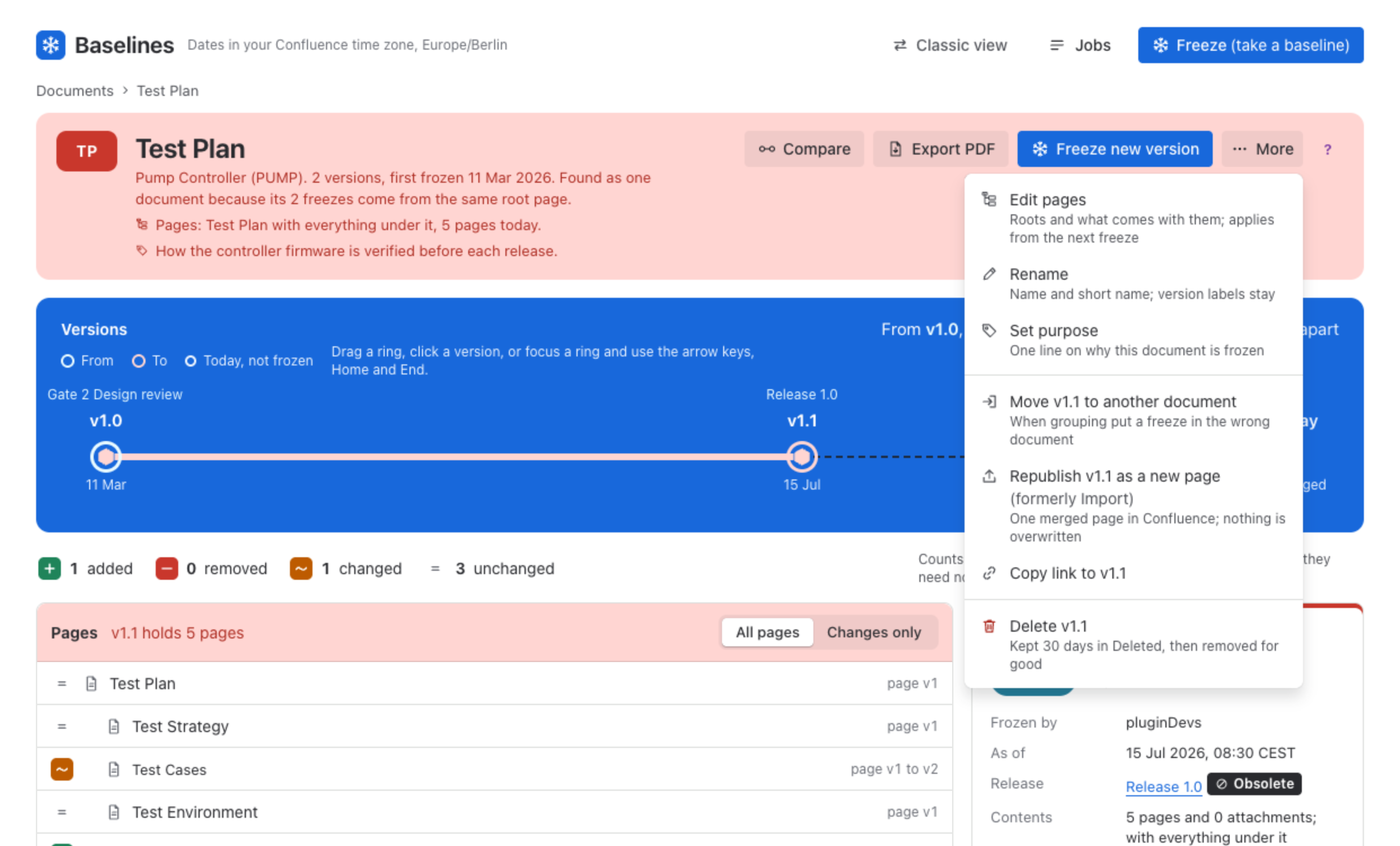
The More menu acts on the document and on the version on the card.
| Item | What it does |
|---|---|
| Edit pages | Roots and what comes with them; applies from the next freeze. |
| Rename | Name and short name; version labels stay. |
| Set purpose | One line on why this document is frozen. |
| Move the version to another document | When grouping put a freeze in the wrong document. |
| Republish the version as a new page | One merged page in Confluence; nothing is overwritten. See Republish. |
| Copy link to the version | A link that opens this version. |
| Delete the version | Kept 30 days in Deleted, then removed for good. See Deleted. |
A button you do not have the permission for is locked and says which permission it needs.
Was this page helpful? Yes · No · Contact support