How SLA timing works
A Quartz SLA is a clock with rules: something starts it, conditions can pause it, something stops it — and the time it counts is business time projected through a working-hours calendar, recomputed on demand.
One goal, one clock
Each SLA definition tracks exactly one promise — for example "Time to First Response" or "Time to Resolution". One definition is one clock with one target. When a team has several promises, you create several definitions; each runs its own clock on the same issue. This keeps every timer easy to reason about: there is no single definition juggling multiple goals.
A definition has three things that decide its timing: a target (what counts as done or breached), a clock (what starts, pauses, stops and resets it), and a calendar (which hours count). The rest of this page walks through each.
What "met" and "breached" mean
A definition has one of three target types, and the target type decides how a verdict is reached.
| Target type | Breaches when… | Resolves to |
|---|---|---|
| Duration | Business-elapsed working time exceeds the target (e.g. 4h) | Met if stopped in time, Breached if it runs over |
| Date field | Now passes a date taken from an issue field | The due instant is the literal field value |
| Measure-only | Never — there is no target to miss | Met when done, Measuring while open |
A date-field target uses the field's wall-clock value as-is. Unlike a duration target, a date-field deadline is not projected through the working-hours calendar — if the field says Friday 17:00, that is the due instant.
The clock: start, pause, stop, reset
The clock is fully configurable. You set start, stop, pause and reset conditions, plus a calc method that decides which cycle counts when a clock stops and restarts. If you configure none, a sensible default clock applies.
Start
The clock begins when its start condition is satisfied. Start can require any of several conditions or all of them. Conditions include: issue created, a status reached, a field set to a value, a field changed, a date-field met, the first comment, and resolved. A clock can also react to another SLA on the same issue being started, met, breached or stopped — so one clock can begin only after another has finished.
Pause — time that does not count
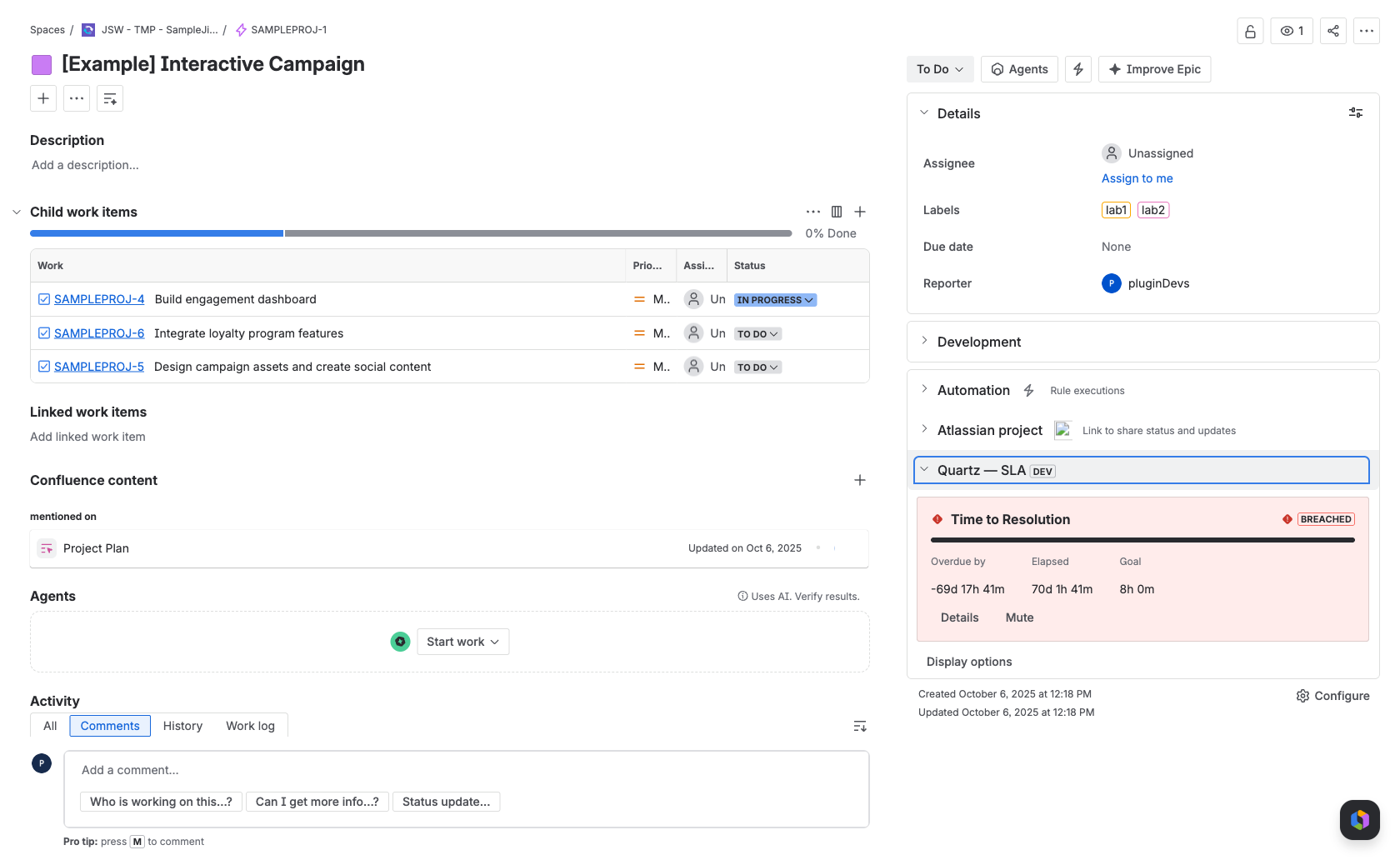
While a pause condition holds — for example, status is "Waiting for customer" — the clock stops counting and resumes automatically when the condition clears. Paused time is excluded from elapsed and never eats into remaining. The issue panel shows these intervals as "Paused — not counted".
Stop and reset
The clock stops when its stop condition is met (commonly: resolved, or a status reached). A reset condition can clear progress and start a fresh cycle. When a clock runs more than once, the calc method (for example, "first" cycle) decides which cycle is used for the verdict. The issue panel shows a per-cycle Cycle breakdown with worked time for each cycle and every pause interval inside it.
Business hours vs 24×7
Duration timers count working time, not wall-clock time. Each SLA uses a working-hours calendar that defines a weekly schedule, business-day hours, holidays and closed exceptions. Nights, weekends, holidays and closed exceptions are skipped by every timer, and the due date is projected forward through those same hours.
Two calendars ship by default: a standard business-hours calendar and a 24/7 calendar. Assign a 24/7 calendar to a goal that should count around the clock; if no calendar is assigned, 24/7 is used. See Calendars to build your own schedule and set company-wide holidays.
Elapsed, remaining and status
Each tile shows Elapsed (working time counted so far), Remaining (working time left before the deadline, or "Overdue by" once it has passed) and the Goal or Due date. You choose whether Remaining or Elapsed is the highlighted figure, and the time format, in Settings; users can override the format on the panel.
A duration goal moves through status tiers as its budget is used. The defaults are a warning at 50% and critical at 80% of the target, both configurable per SLA.
| Status | Meaning |
|---|---|
| On track | Within the warning threshold |
| At risk | Past the warning threshold (default 50%) |
| Critical | Past the critical threshold (default 80%) |
| Breached | Target exceeded while still open |
| Met | Stopped within target |
| Breached late | Resolved, but after the target had passed |
| Measuring | Measure-only goal, still open |
| No target | Date-field goal with no date set |
A worked example
Take a "Time to Resolution" goal with a 4-hour duration target on a calendar of 09:00–17:00, Monday–Friday.
Created Monday 16:00
The clock starts. One working hour remains in the day (16:00–17:00), so 1h is counted before the office closes.
Overnight pause
From 17:00 Monday to 09:00 Tuesday no working hours pass. Elapsed stays at 1h; remaining stays at 3h. None of that wall-clock time counts.
Tuesday: waiting on customer
At 09:00 the team replies and moves the issue to "Waiting for customer" until 11:00. Because a pause condition holds, those 2 working hours are not counted — they show as "Paused — not counted".
Tuesday 13:00: resolved
Work resumes 11:00–13:00, adding 2h. Total counted working time is 1h (Mon) + 2h (Tue) = 3h, under the 4-hour target, so the goal resolves to Met — even though three calendar days of clock time elapsed.
The pause is why the goal was met: had those 2 hours counted, elapsed would have been 5h and the goal would have breached. Pausing protects remaining time during waits you do not control.
Computed on demand — nothing to backfill
Quartz does not keep a separate database of running timers. Every time a status is needed, it is computed on demand, so pauses, resets and cycles are honoured exactly. There is nothing to store, backfill or keep in sync; change an SLA's rules and existing issues recompute against the new rules immediately.
In large aggregate scans, an issue whose timing is too complex to evaluate fully is counted "approximately", and the screen warns that paused time may be over-counted. Because everything is computed on demand, issue data never has to leave Atlassian — there is no external timer store.
The "Why this status?" explainer on each issue tile spells out, in plain language, when the clock started, what it is waiting for, how much time was paused, and the verdict — all computed on demand, never stored.
Comments that should not count
If a clock stops on the first comment, an automated auto-reply could end it unfairly. In Settings you can have every clock ignore comments from automation and app accounts and from specific named users, so those replies do not count as a first response. Status changes made by automation still count — only comments from the excluded actors are skipped.
Was this page helpful? Yes · No · Contact support