All documentation pages
Radar
Radar draws every open SLA timer at the moment it breaches, with the decisions to make today. It is where most people start the day.
Everyone who can open Quartz, unless a Jira admin names who may on the View Radar grant in Permissions. Radar reads as you, so it shows only requests you can browse in Jira. Two people can see different boards on the same site.
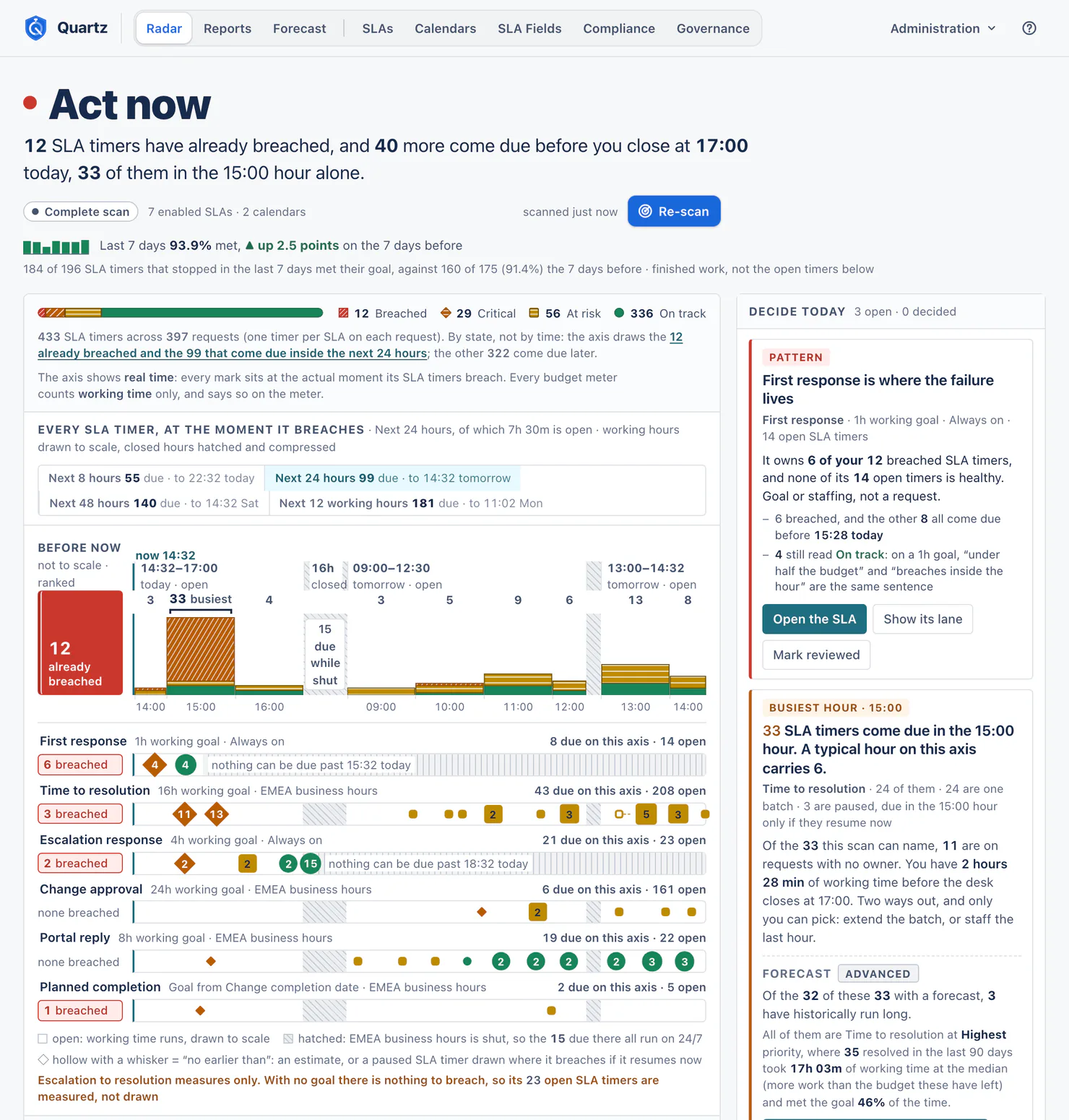
The top of the page
- The lead says what needs you now, in one sentence, for example "12 SLA timers have already breached, and 40 more come due before you close at 17:00 today, 33 of them in the 15:00 hour alone."
- Re-scan, at the right of the scan line, reads again, and beside it Radar says when it last scanned. Radar reads Quartz's own record of every open SLA timer, which takes in a change on a request within about a minute.
- The last 7 days line gives the met rate of the SLA timers that stopped in the last 7 days, against the 7 days before. It is finished work, not the open SLA timers below, and it equals the lead of Reports for the same period.
- Four state tiles: Breached, Critical, At risk, On track, each a count of SLA timers. A request measured by three SLAs has three SLA timers, and Radar says so: "433 SLA timers across 397 requests (one timer per SLA on each request)".
When something limits what Radar can draw, a box above the board says what and why, for example an SLA whose requests Quartz is still reading after an install or upgrade, or SLA timers this scan could not score. Nothing is silently left out.
The axis: every SLA timer at the moment it breaches
The axis draws each open SLA timer at the real moment it breaches.
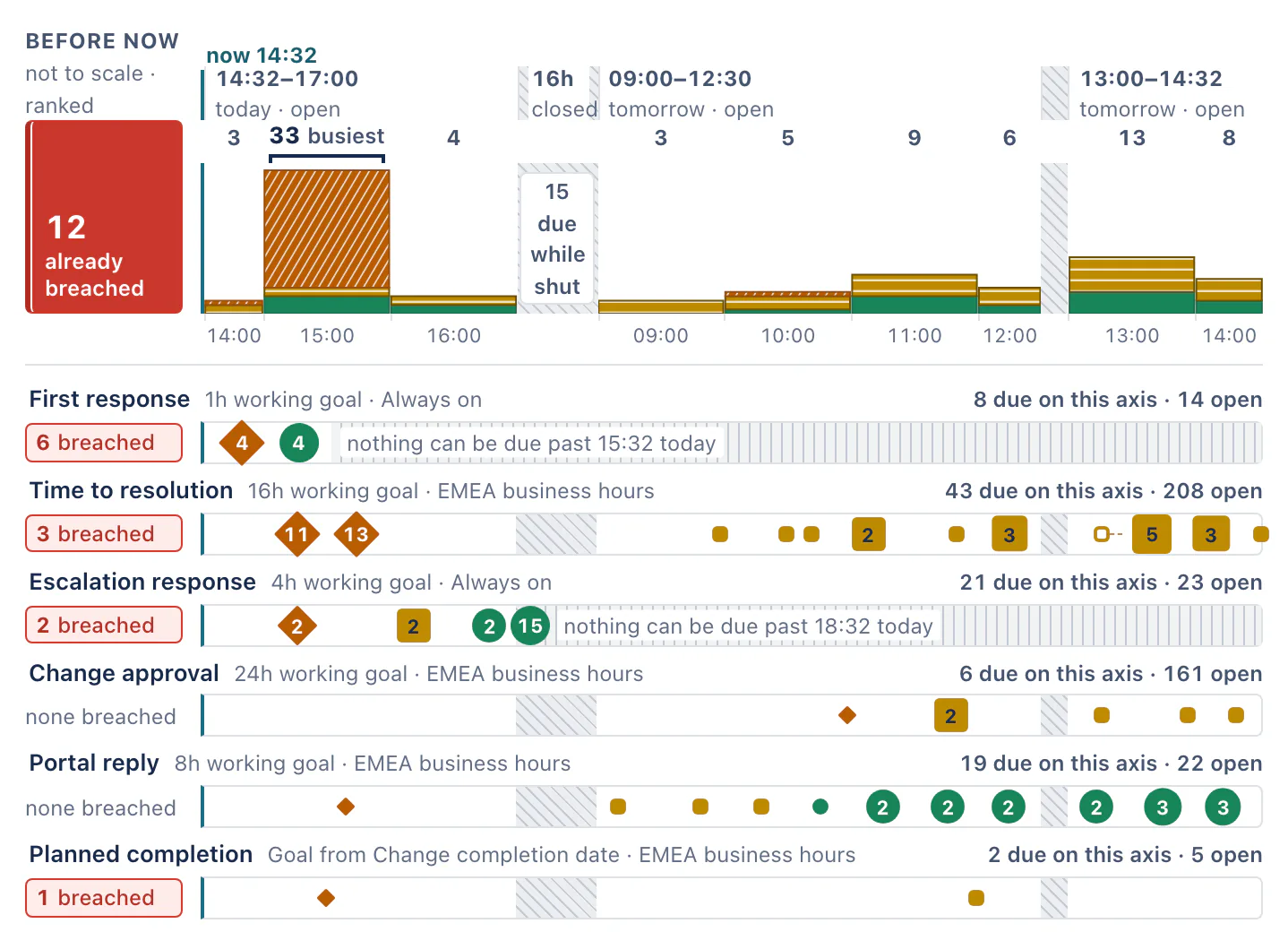
- Choose the window: Next 8 hours, Next 24 hours, Next 48 hours, or Next 12 working hours. Each choice says how many SLA timers come due in it and until when.
- Working hours are drawn to scale; hours when the calendar is shut are hatched and compressed, so a night or a weekend does not stretch the picture.
- Before now holds the SLA timers that have already breached, ranked, not to scale.
- One lane per SLA, with its goal and its calendar ("16h working goal · EMEA business hours"), how many of its SLA timers are due in the window and how many are open.
- A hollow mark with a whisker means "no earlier than": an estimate, or a paused SLA timer drawn where it would breach if it resumed now ("breaches no earlier than 23:12 today, if it resumes now"). A paused SLA timer on a working-time goal has no fixed deadline: its working time left holds still, so that moment moves later for as long as the pause lasts. A date goal keeps its date, paused or not.
- The busiest hour is marked, with how many SLA timers come due in it.
- An SLA with no goal ("Measure only") has nothing to breach, so it has no marks, and the key says so. An SLA whose goal is a date on the request draws its SLA timers at that date; the ones whose date is empty are counted and named, not drawn.
Every budget meter counts working time only, and says so on the meter.
Lists
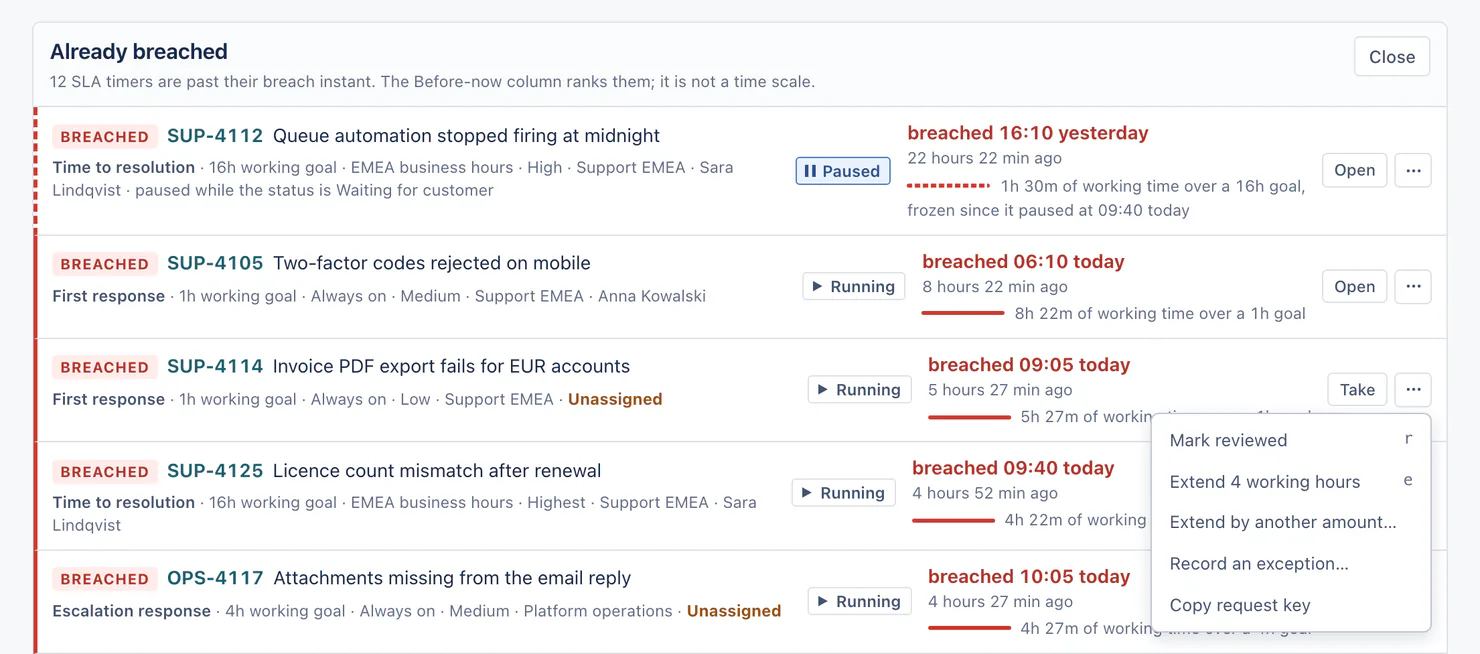
Choose a tile, a lane, an hour or a mark, and Radar lists those SLA timers, most urgent first. A list of more than ten shows the first ten and Show all. Each row names the request, its SLA, its goal, calendar, priority and assignee, and what is happening now (for example "paused while the status is Waiting for customer"). A request's summary is read as the row comes on screen.
While nobody is assigned to the request, its row offers Take, which assigns it to you. Once someone is assigned, you or anyone else, the row offers Open, which opens the request in Jira.
Decide today
Beside the axis, Radar lists the few decisions worth making now, one card each.
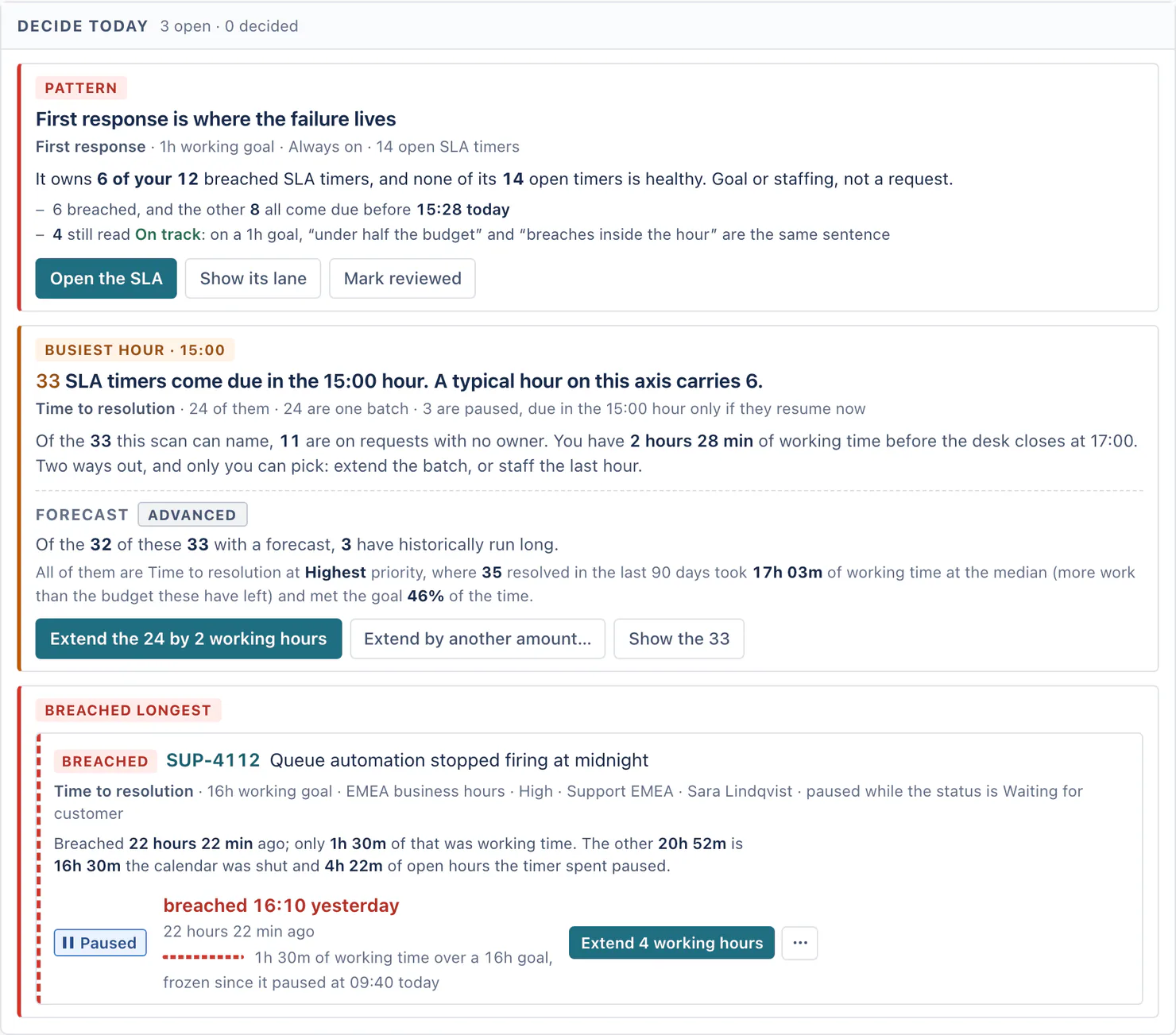
- Pattern: one SLA owns most of the breaches ("First response is where the failure lives"). The answer is usually the goal or the staffing, not a request. Open the SLA, Show its lane, or Mark reviewed.
- Busiest hour: how many SLA timers come due in one hour against a typical hour, how many are on requests with no owner, and how much working time is left before the calendar closes. Extend the batch, or staff the last hour.
- Forecast (Advanced edition): not a card of its own, but a line inside the Busiest hour card. It says how many of that hour's SLA timers have historically run long, judged against your resolved history. Only Jira admins and people granted Full configuration see it, and only when Radar scans within ten minutes of Forecast reading their history: open Forecast first, then choose Re-scan on Radar. On the Standard edition, the same people read what Advanced would add.
- Breached longest: the SLA timer that breached longest ago, how much of that time was working time, and what paused it.
The card count says how many are open and how many you have decided.
Changing an SLA timer from Radar
Every row has a menu (Actions for the request), also reached with the keyboard:
| Item | What it does |
|---|---|
| Mark reviewed (key r) | Marks the SLA timer as reviewed, for you only, at the state it is in now, with Undo. |
| Extend 4 working hours (key e) | Adds 4 hours of working time to the SLA timer's goal, with Undo. |
| Extend by another amount… | Asks how much, and how the deadline moves: by an amount from the goal, or to an amount of working time from now. At most 336 working hours (20,160 working minutes). |
| Clear extension | On an SLA timer that has an extension: takes it back, with Undo. |
| Record an exception… | Leaves the SLA timer out of breach counts, Radar, Reports and SLA fields. You can give it an end date (Ends on); Quartz lifts it at the end of that day, in your site's time zone. |
| Copy request key | Copies the key to your clipboard. |
The busiest-hour card can extend the whole batch at once ("Extend the 24 by 2 working hours", or Extend by another amount…). A large batch runs in the background with a progress line and a Stop button; when it ends, Radar says how many it changed, how many it could not, why, and Show the ones it could not change.
People granted Extend SLA timers or Record exceptions (or Full configuration), for SLA timers of the SLAs inside their grant. See Permissions.
Reasons: when Settings requires a reason, every verb that adds time or hides a breach asks for one ("This site asks for a reason."), at most 300 characters. Undo never asks. On the Advanced edition, Governance lists the reasons people gave.
Limits: one person can change at most 5,000 SLA timers from Radar's batch actions in an hour, and a site holds at most 50,000 exceptions at once. Changing or lifting an exception is always allowed.
Go deeper
The doors at the foot of the page open Reports, Forecast (Advanced edition), SLAs and Calendars; you see the doors of the pages you may open. The SLAs and Calendars doors say how many there are.
The footer
The footer names how many SLAs are enabled, how many calendars they use, when Radar scanned, and the time zone every time on the page is in ("Times are in Europe/Berlin."). It ends with "The scan runs as you, so it sees only the requests you can browse in Jira."
When Radar says something is still going on
- "Quartz is still reading this site's history", with how far it got: after an install or an upgrade. Counts grow until it finishes.
- "Still being read" on one SLA's lane: Quartz has not read that SLA's requests yet (a new SLA, or one that was just enabled or widened), so no count on the page includes it.
- "Quartz is recounting <SLA> after a change": someone changed how the SLA measures and asked for a recount. Until it finishes, some of its SLA timers show the earlier settings.
- "Radar is waiting for Jira" or "Radar is waiting": Quartz cannot check just now which requests you can open, so Radar draws no SLA timers. The card names why: "Jira's hourly limit for apps was reached" (Jira's own pool is spent), "Quartz is holding back because this site has used its share of Jira's hourly limit for apps", or "Quartz is keeping the rest of Jira's hourly limit for apps for more urgent work", and, when it knows, until when. Choose Re-scan after that. While Radar still holds an earlier check of your requests, it keeps the board instead and says so under the lead, for example "Radar shows the requests you could open at 14:05 until 15:00". See Limits and data retention.
Questions
Why does Radar show fewer requests than a Jira filter? Radar counts only requests you can browse, only SLAs that are enabled, and only SLA timers that are running. An SLA timer with an exception is left out. A request outside every SLA's scope has no SLA timer.
Why does a lane say "nothing can be due past 15:32 today"? On an SLA whose goal is short and whose calendar is always open, every open SLA timer must come due within one goal of now: at 14:32, with a 1h goal, by 15:32.
Why is the time since a breach longer than the working time? A breached SLA timer on a business-hours calendar counts working time only. Radar splits the rest into hours the calendar was shut and hours the SLA timer spent paused.
Something unclear or wrong on this page? Contact support.