All documentation pages
Backups and the configuration file
Export, import and backups holds the configuration file, imports of one, and the backups Quartz saves before each change to the configuration. Open it from Settings > Open export, import and backups, or, for people granted only this area, from its own entry in the Administration menu.
Jira admins, Full configuration, and the Export, import and backups grant.
- Permissions travel only in a Jira admin's file. A download or a backup opened by anyone else leaves permissions out ("Permissions are left out of your download: only a Jira admin's download includes them."), and an import or restore by anyone else leaves permissions as they are.
- A file never gives more power than the hands that import it. Every object an import or a restore would change must be one the person could save by hand, both as this site has it and as the file has it. Alert rules, retention and other settings need Full configuration. An object outside what the person may change stays as this site has it: its row reads "Outside what you may change", says why and offers no choice, and the rest can still be imported or put back. If an object the import or restore was about to change is outside what the person may change by the time it starts or runs (their grants or Jira groups changed after the comparison, say), the whole import or restore is refused and nothing changes.
The configuration file
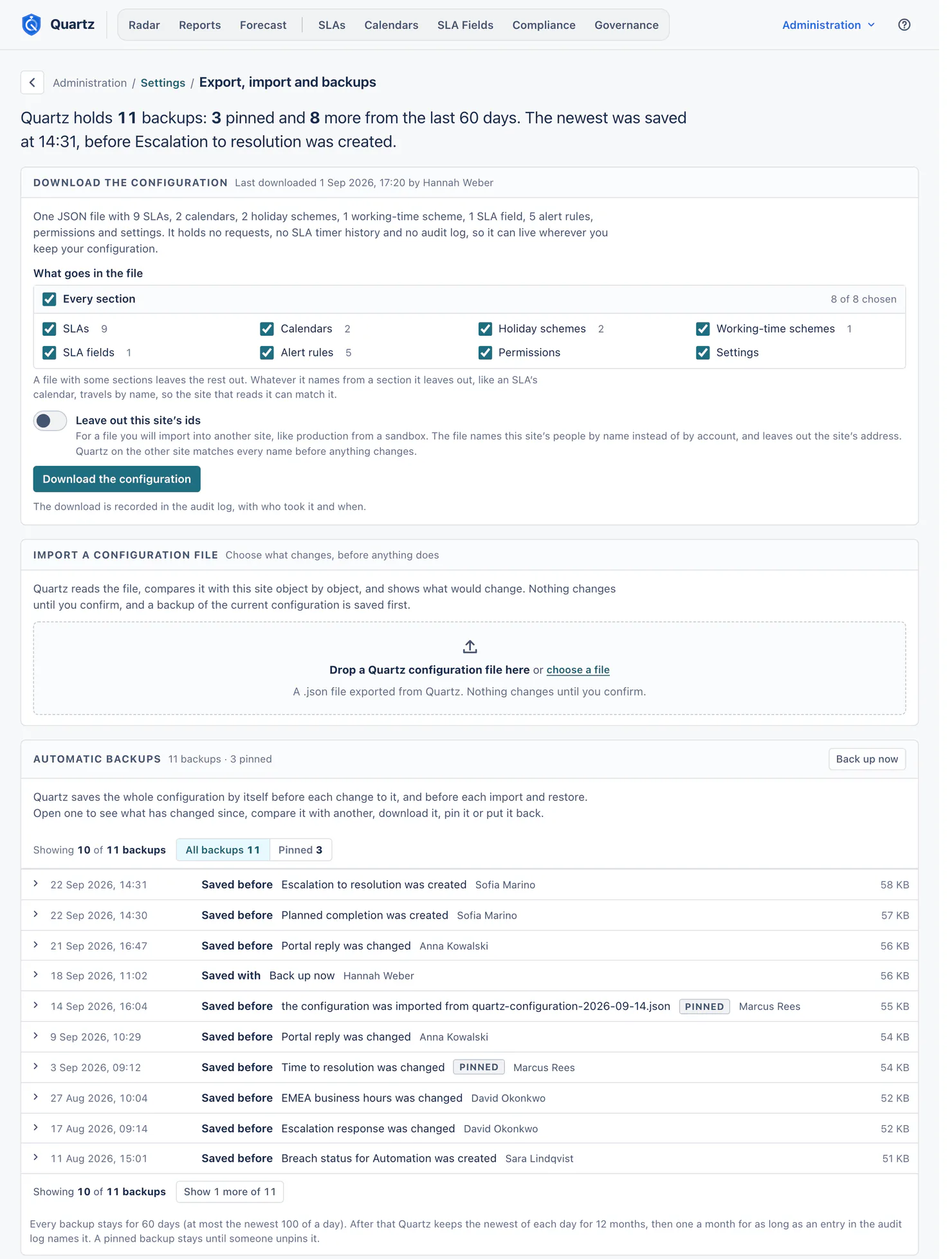
The whole Quartz configuration is one JSON file: SLAs, calendars, holiday schemes, working-time schemes, SLA fields, alert rules, permissions and settings. It holds no requests, no SLA timer history and no audit log, so it can live wherever you keep your configuration.
Download the configuration:
- What goes in the file: every section, or the ones you choose. Whatever the file names from a section it leaves out, like an SLA's calendar, travels by name, so the site that reads it can match it.
- Leave out this site's ids: for a file you will import into another site, like production from a sandbox. The file names this site's people by name instead of by account, and leaves out the site's address. Quartz on the other site matches every name before anything changes.
- Quartz prepares the file only when you choose Download the configuration ("Preparing the file."), and saves it the moment it is ready. If your browser did not save it, choose Download again: the file is saved at once.
- Once the file is saved, Quartz's page records the download in the audit log, with who took it and when; a download whose record could not be written is not recorded.
Importing a file
Import a configuration file: drop a Quartz configuration file on the card, or choose one. Nothing changes until you confirm, and a backup of the current configuration is saved first and pinned.
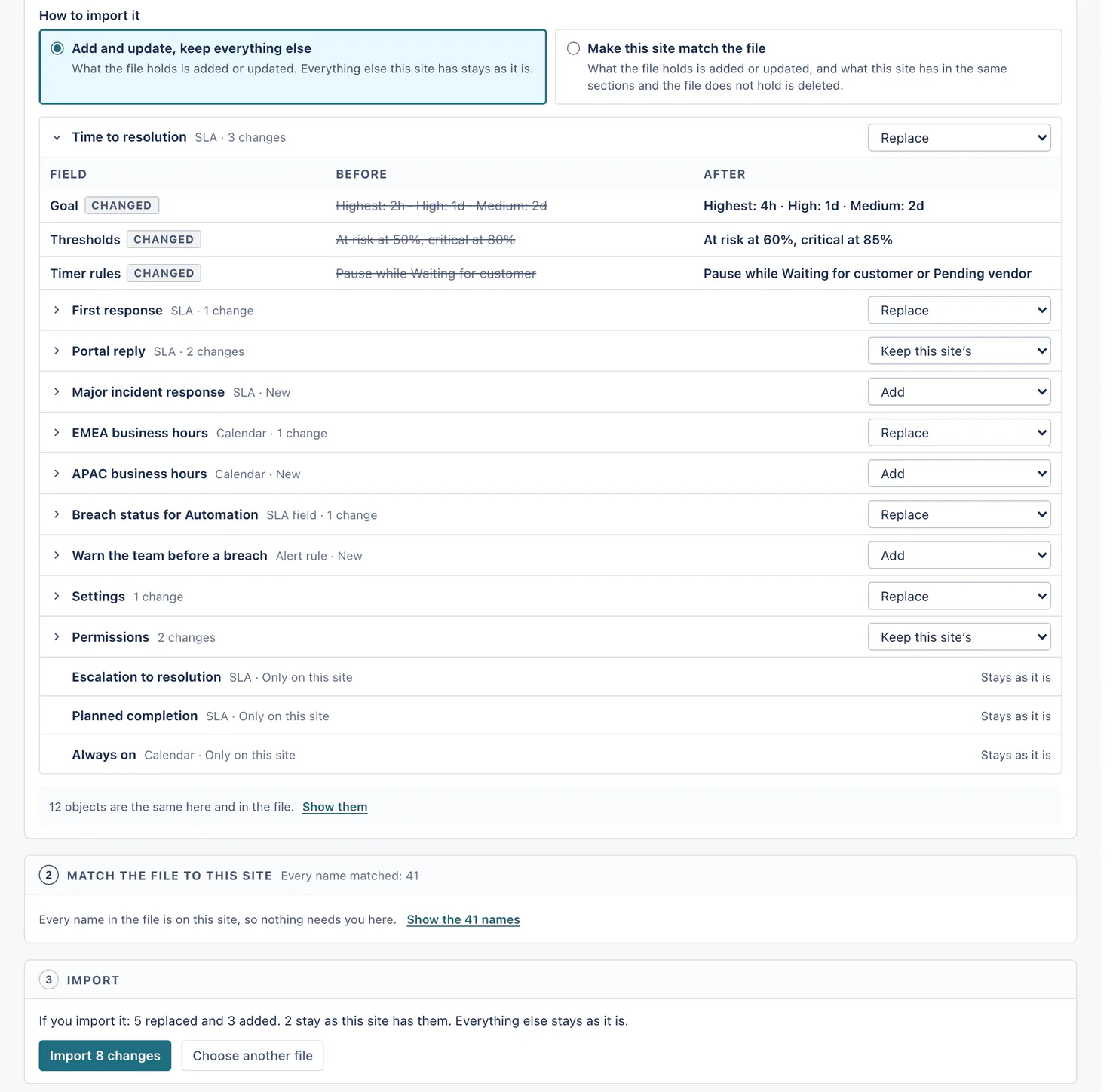
Sending the file. A file is sent in parts of at most 400 KB, with progress. A file that needs more than 64 parts (more than 25.6 MB) is refused. If a part does not arrive, Try again sends only the parts that did not. Quartz then compares the file with this site and shows the cards below, numbered as they are here.
-
What the file holds. Quartz compares the file with this site object by object and shows what would change. For each object choose Add, Replace, Keep this site's, Add as a copy or Skip. A list of more than 50 objects also has buttons that show only Changed, New, Only on this site or Same, a search by name, and Set every changed object to. When the file holds nothing new or changed that you can import, this card says so ("Nothing in this file differs from this site, so importing it changes nothing.", or that everything in it is outside what you may change), and it shows no How to import it and no cards below.
How to import it, on the same card:
- Add and update, keep everything else (the default): what the file holds is added or updated. Everything else this site has stays as it is.
- Make this site match the file: what the file holds is added or updated, and what this site has in the same sections and the file does not hold is deleted. It reaches only the sections the file holds, and asks first, naming and counting what it would delete. A file of two SLAs never deletes your calendars.
-
Match the file to this site. The file names fields, request types, statuses, groups, calendars and SLAs by id and by name. Quartz matches each one by id first, then by name and type, and asks you to choose a match for the ones it could not find. Nothing imports until every name the import needs is matched. The app accounts Settings ignores (Automation for Jira, say) travel as app accounts and match only this site's app accounts; when the file's Settings ignore automation and apps, an app account this site does not have needs no match, because that switch already covers it.
-
Import. The import runs in the background as one change, with progress; anyone reading Quartz meanwhile sees the whole import or none of it. It is recorded in the Audit log with the file's name.
A file whose object ids include a name every JavaScript object has built in (such as constructor, toString or __proto__) is refused whole before anything changes, for example "This file is not a Quartz configuration Quartz can read: a calendar has no id Quartz can store." Each person runs one comparison of a file at a time, and one of backups (a restore's comparison included): starting another of the same kind replaces the one before.
A file whose import would shorten a retention setting asks the same question the Settings card asks, with what it would remove. A large file's comparison runs in the background, with progress counted in objects. Measured on a test site: a 5 MB file (500 SLAs and 200 calendars more than the site had) was sent in 18 seconds, its comparison was on the page about 33 seconds after the file was chosen, and its 700 objects imported in about 44 seconds. With those 700 objects stored, every page and the request panel kept opening with no error; the request panel took about 11 to 12 seconds to draw, against 2 to 4 seconds without them.
Make this site match the file deletes as many objects as the file leaves out. A file that only leaves objects out, with nothing new or changed you can import, cannot be imported in that mode from the card: card 1 says there is nothing to import. To delete what was added since a backup, restore that backup with Make this site match the backup. Measured on a test site, where the test started the import itself because the card does not offer it for such a file: an import in that mode that deleted those 700 objects (500 SLAs and 200 calendars) finished in about 70 seconds, and the pages opened every 15 seconds while it ran all drew.
While Quartz cannot read Jira for the rest of the hour (Jira's hourly limit for apps was reached, this site used its share of it, or Quartz is keeping the rest for more urgent work), an import cannot start: the card says why, until when, and that nothing has changed, so you try again then. A comparison started meanwhile waits and goes on by itself at the time the card names (or, when it cannot start at all, the card says when to try again), and an import or a restore that was already running waits the same way; nothing changes until it goes on.
Automatic backups
Quartz saves the whole configuration by itself before each change to it (an SLA, a calendar, a holiday or working-time scheme, an SLA field, an alert rule, permissions or a setting) and before each import and restore. Saved views and report schedules are not part of the configuration and take no backup, and neither does pausing field updates or extending a field's context in Jira. The card lists each backup with when it was saved, what it was saved before ("Saved before Portal reply was changed", or "Saved with Back up now"), who made the change, and its size.
- Back up now saves one on demand. A backup always holds a configuration that is saved whole: while a large change (an import, say) is still being saved, Back up now says "Quartz is still saving a large change to its configuration. Try again in a minute.", and the backup an import or a restore takes first waits for it by itself.
- Open a backup to see what has changed since.
- Compare with another backup: any two backups, object by object.
- Download a backup as a configuration file.
- Pin this backup so it stays until someone unpins it. Quartz pins the backup taken before the Quartz 5 update, and the backup before every import and every restore, by itself.
How long backups stay: every backup for 60 days (settable to 365 in Settings, at most the newest 100 of a day). After that Quartz keeps the newest of each day for 12 months, then one a month for as long as an entry in the audit log names it. A pinned backup stays until someone unpins it, and the newest backup stays while it is the newest. A backup removed by these rules says so if a link still points at it: "That backup was removed by the backup retention setting."
Restoring a backup
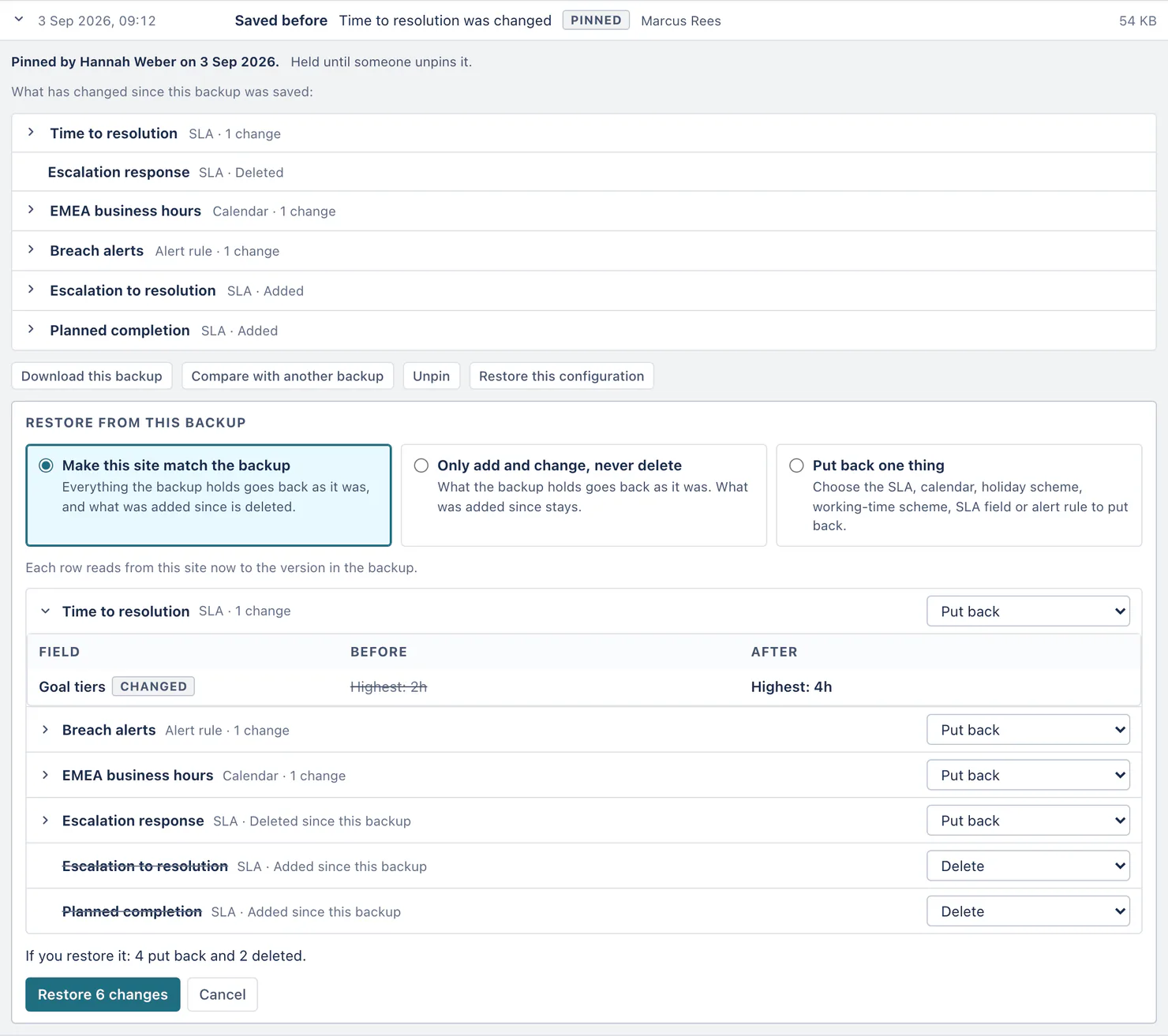
Restore from this backup offers:
- Make this site match the backup: everything the backup holds goes back as it was, and what was added since is deleted.
- Only add and change, never delete: what the backup holds goes back as it was. What was added since stays.
- Put back one thing: choose the SLA, calendar, holiday scheme, working-time scheme, SLA field or alert rule to put back.
Each row reads from this site now to the version in the backup, and you can choose per object as you can for an import. A restore runs as one change in the background, is recorded in the Audit log ("From the backup of ..., putting back ..."), and saves and pins a backup of the configuration before it. A restore, like an import, cannot start while Quartz cannot read Jira for the rest of the hour; the card says why and until when.
A restore deletes as many objects as it needs to. Measured on a test site: putting back the backup taken before a 700-object import, with Make this site match the backup, deleted the 700 objects (500 of them SLAs) in about 70 seconds. The pages opened every 15 seconds during and after it all drew, and an SLA saved while it ran waited for it and then went in.
The backup taken before the Quartz 5 update
When your site moved to Quartz 5, Quartz saved your whole configuration as it was and pinned it. In the list it reads "Saved before the Quartz 5 update", and opened it says "Pinned: the backup before the Quartz 5 update." A site that had no configuration stored at the update has no such backup. Quartz 5 reads it in its own shape (company holidays as the Company holidays scheme, the new display formats), so restoring it right after the upgrade would change nothing. It stays until a Jira admin unpins it: nobody else can.
Questions
Does a backup hold my SLA timer history? No. Backups and the configuration file hold configuration only. SLA timer history lives in Quartz's database for as long as your history setting says.
Can I move Quartz's configuration from a sandbox to production? Yes: download with Leave out this site's ids, then import on production and match any names Quartz could not find.
Can I go back to the previous Quartz version with a backup? No. A backup restores configuration within Quartz 5; going back to the previous major version is not supported once new options are used.
Something unclear or wrong on this page? Contact support.