All documentation pages
Settings and alert rules
Settings holds this site's defaults for Quartz, the check of its whole configuration, alert rules, the customer portal, how long Quartz keeps its records, and the configuration file.
Jira admins and people granted Full configuration change Settings. People granted View configuration read a summary of it; configuration health, the record of alerts and the configuration file are not in that summary. Every change is saved with Save changes, recorded in the Audit log, and backed up before it is made.
Configuration health
Quartz finds statuses, priorities and work types by name, projects by their keys, and fields, groups and accounts by their Jira ids. When one of those is renamed or deleted in Jira, or an SLA names one this site never had (a template or a file from another site can bring in a status such as "Waiting for customer"), an SLA timer can stop with no error. Configuration health finds those, says plainly that the name does not exist on this site, and each problem opens the page it is fixed on, where the fix is offered in place. It does not check the groups and accounts that an SLA's timer rules, goal tiers or calendar rules name (see SLAs).
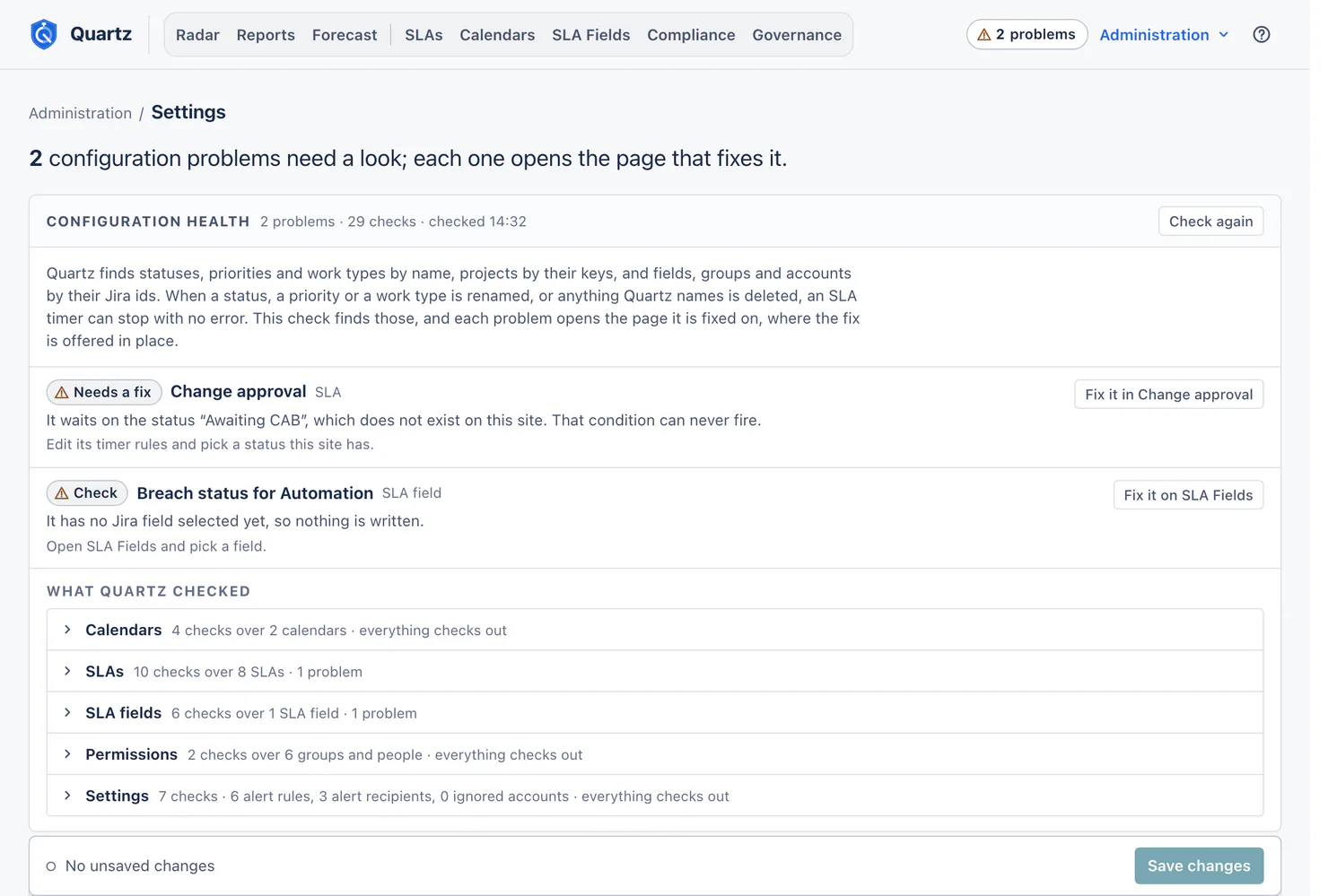
The card says how many problems it found and when it last checked, with Check again. Check again reads Jira again at most once a minute for the whole site and six times an hour for each person, and it may spend at most 2,000 points of Jira's hourly limit for apps an hour for the whole site (or one whole check an hour, on a site so large that one costs more); otherwise the card shows the last check and when it was made. Each problem reads Needs a fix or Check, names what is wrong, and offers a button such as "Fix it in Change approval". The same count shows as a chip in Quartz's tab row, for people who can configure. Notes are listed after the problems, with a "Note" chip: they are for your information, and there is nothing to fix in Quartz, so they never count as a problem and add nothing to the chip.
What Quartz checks:
| Area | Checks |
|---|---|
| Calendars | Every calendar has at least one working day. Every working day closes after it opens. Every holiday scheme a calendar uses still exists. Every scheme that takes a country's public holidays covers the years its SLAs reach. |
| SLAs | Every SLA points at a calendar that exists. Every status a timer rule waits on still exists. Every Jira field a timer rule or a date goal reads still exists. Every other SLA a timer rule waits on still exists and is enabled. Every project, work type and request type in a scope still exists. Every priority in a scope or a goal tier still exists. Every JQL filter and JQL goal tier is one Jira can read. Quartz can read who the agents of each service project are. Every field a goal is read from holds a number or a length of time. Every option a goal tier or a calendar rule matches still exists. |
| SLA fields | Every SLA field has a Jira field chosen. Every Jira field it writes to still exists, is one Quartz can fill, and takes what the SLA field stores. Its source SLAs still exist, and at least one of them is enabled. The Jira field's context covers the projects its SLAs measure. |
| Permissions | Every group granted a capability still exists. Every person named on a capability still has an account. |
| Settings | Every alert recipient, group or person, still exists. Every SLA and goal tier an alert rule watches still exists. Every account in the ignore list still exists. Every step of the last Quartz update has finished, and Quartz's own upkeep (removing its search property from requests no SLA measures, the customer portal panel, the answers Jira keeps for quartzSla() searches) has not failed five times in a row. Quartz's database has room for the SLA timer history this site keeps. Background work did not wait for Jira's hourly limit for apps in the last 24 hours. Every stopped SLA timer was measured the way this version of Quartz measures, or keeps its result by choice. |
When a run of Quartz's own upkeep fails, Quartz tries again by itself after 1, 2, 4 and 8 hours, then once a day, from where it had got to; after five failures in a row the card says so, and there is nothing to change on the site.
The Permissions and Settings areas are shown only to people who can configure Quartz. When a check could not run (for example Jira did not answer, or Quartz is waiting for Jira's hourly limit for apps), the card says which ran and which did not, and marks each skipped check; a check that did not run is never reported as passed, and nothing it skipped is called missing.
Jira's hourly limit for apps
The Settings check "Background work did not wait for Jira's hourly limit for apps in the last 24 hours" also shows people who configure Quartz what Quartz spent of that limit, whether or not anything waited: "This hour Quartz spent 3,120 points of Jira's hourly limit for apps, most on reading permission schemes (1,206), reading Jira's list of fields (872) and checking who may use Quartz (540)", and the same for the last 24 hours.
When work did wait, a note says which rule held it back, and for how long or how many reads:
- Jira's limit was reached: Jira's own pool was spent, and the work went on when it reset.
- This site used its share: on the pool every site with Quartz shares, each site has 16,250 of the 65,000 points an hour for everything but changes on requests.
- Quartz was keeping the rest for more urgent work: less urgent work waited so the pool stayed open for changes on requests and screens. On the shared pool this is also the note when the history read, background checks or reports reached three quarters of the site's share: the last quarter stays for screens.
In each case work that waited goes on by itself at the top of the hour, the most urgent first. See Limits and data retention.
Timer display
How SLA timers read on request panels, for everyone on this site.
- Time format, six choices, each shown on the same 34h 30m of working time: "1d 10h 30m (days of 24 hours)", "34h 30m", "34.5h", "3d 7h 30m (working days)", "1.4d (days of 24 hours)", "3.8d (working days)". The two working-day choices are worded for your site's default calendar: these are their words with the calendar Quartz starts with (Mon to Fri, 9 to 18), and with a working day of 7h 30m they read "4d 4h 30m (working days)" and "4.6d (working days)". On a request panel, a working day is as long as the SLA's calendar makes it. Decimal formats show one decimal place.
- On a request panel, Highlight chooses the figure a panel puts first: Time left, or time past breach, or Time used.
A panel shows the new setting the next time it is opened.
Customer portal
Whether customers see SLA timers on the requests they open on the portal, which SLAs, under which names, and on which request types. See The customer portal.
Alert rules
Each rule watches SLA timers and, at the moment you choose, emails people through Jira or writes on the request. Quartz checks when a change on a request reaches it, typically within about a minute, and close to the moment a rule's time comes. Rules watch SLAs whether or not an SLA field writes them.
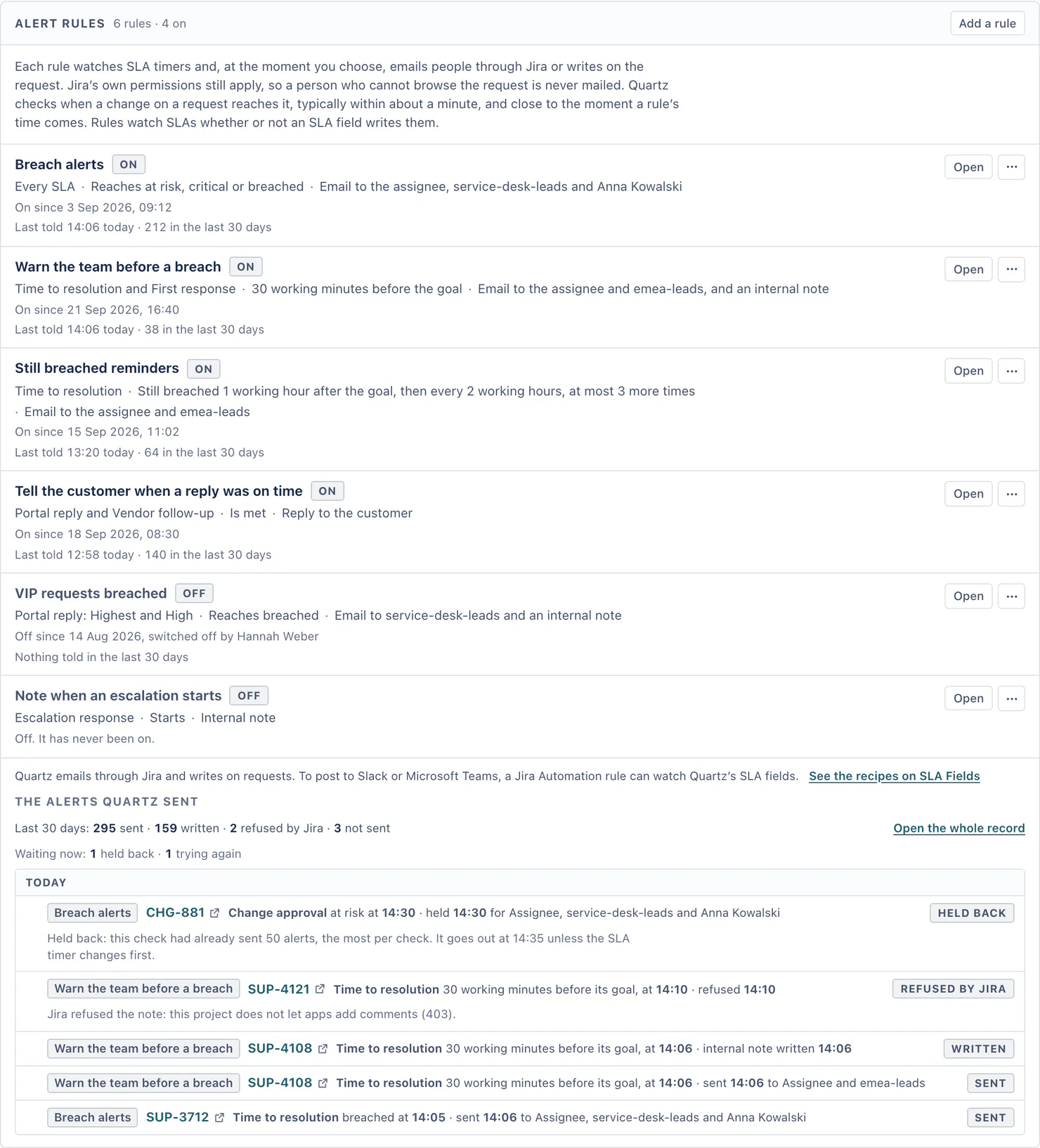
The card lists each rule with what it watches, when it acts, what it does, whether it is on, and how many it told in the last 30 days. Add a rule opens the rule editor.
A rule
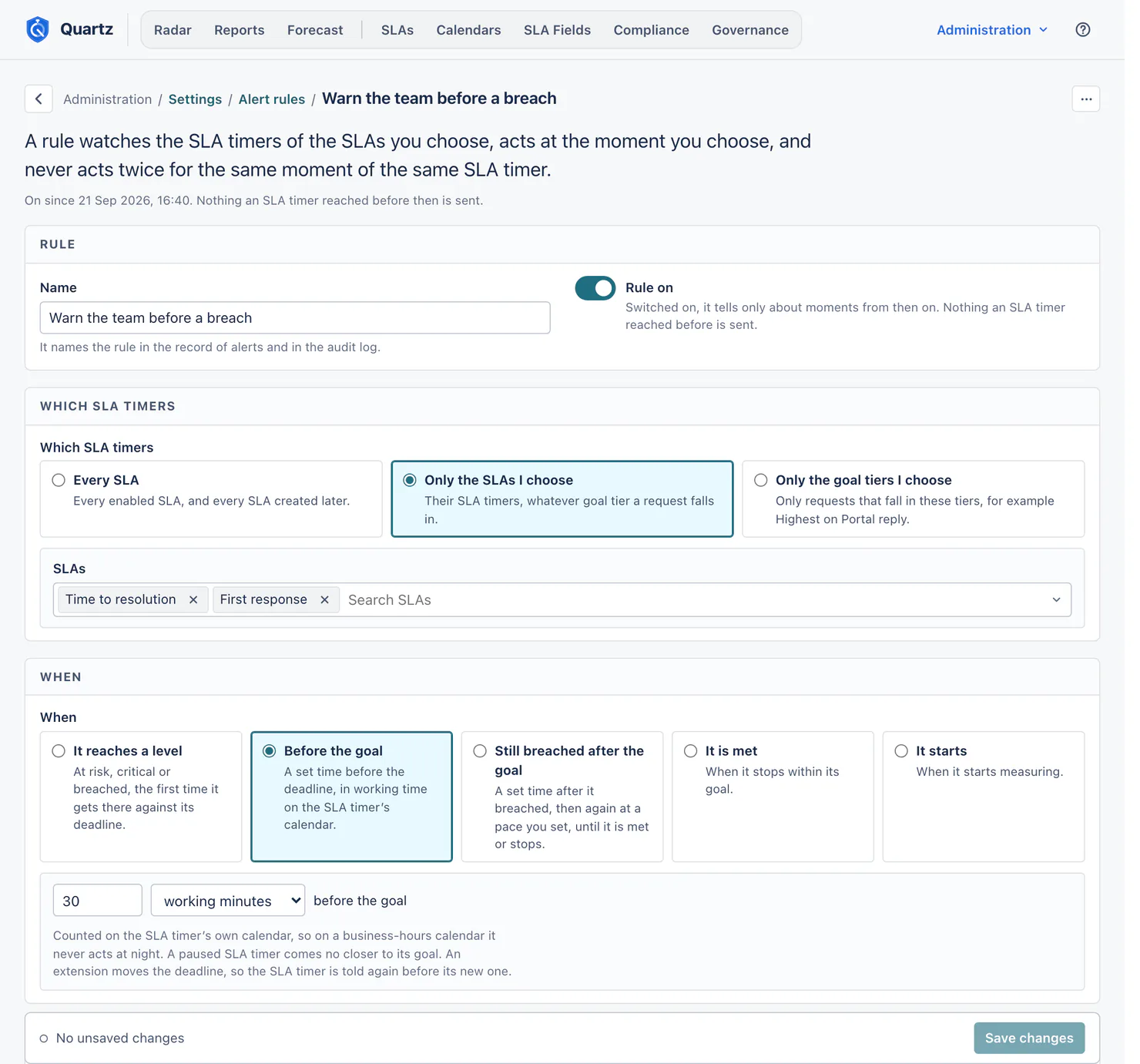
- Name: it names the rule in the record of alerts and in the audit log.
- Rule on: switched on, a rule tells only about moments from then on. Nothing an SLA timer reached before is sent.
- Which SLA timers: Every SLA (every enabled SLA, and every SLA created later), Only the SLAs I choose, or Only the goal tiers I choose (for example Highest on Portal reply).
- When:
- It reaches a level: at risk, critical or breached, the first time it gets there against its deadline. An SLA timer alerts at most once for each level you chose; if it reaches a worse level before the email goes out, only the worse level is mailed. When its deadline moves (an extension), it can alert again against the new deadline.
- Before the goal: a set time before the deadline, in working time on the SLA timer's calendar. A paused SLA timer's moment moves later for as long as the pause lasts, so the rule acts on it once the SLA timer runs again, and the rule's preview says so.
- Still breached after the goal: a set time after it breached, then again at a pace you set, a set number of times, until it is met or stops.
- It is met: when it stops within its goal.
- It starts: when it starts measuring.
- What it does:
- Email, through Jira, to the Assignee, Reporter and Watchers, and to groups (up to 50) and people (up to 200) you name. Jira mails each person named who can browse the request. On a service project the reporter is usually a customer, who then gets the email too.
- Add an internal note. Quartz writes it under its own name, as an app, and marks it internal: on a service project Jira shows it to agents and not to the customer; on any other project everyone who can browse the request sees it.
- Reply to the customer. The customer reads it on the portal and in Jira's email to them. Quartz writes it only on requests of a service project, and only for an SLA the Customer portal card shows to customers: Show SLAs to customers is on, and the SLA is left on under Which SLAs customers see. Show SLAs to customers is off when Quartz is installed, so until you turn it on a rule writes no reply. When a reply is not written, the record says why.
- Most alerts per check: 1 to 1,000. The worst SLA timers are told first, then the ones furthest past their deadline. The rest go out 5 minutes later.
- Message: a subject (email only) and a message. Leave both empty and Quartz writes its own words in an email or an internal note; a rule that replies to the customer needs a message of its own ("Write the message the customer reads."). Placeholders:
{request}(the request key),{sla}(the SLA's name),{state}(at risk, critical, breached, met or on track),{due}(the deadline),{left}(the working time left, or past the goal),{assignee}(the assignee's name),{link}(a link to the request in Jira). Times are in the site's time zone. A placeholder with nothing to say reads None. - Try it on a request: fills the message on a request you can browse, from the rule as it is on the page, saved or not. Nothing is sent.
Notes and replies need a Jira admin: a rule writes notes and replies only once a Jira admin has saved it. Saved by someone granted Full configuration who is not a Jira admin, it writes none: its row reads "Writes no note or reply until a Jira admin saves it." and the record lists each one it did not write as Not sent, with the reason. The same holds after such a person changes its message, when it acts, which SLA timers it watches, or whether it writes a note, a reply or both, and after an import or a restore adds or changes the rule, whoever runs it, until a Jira admin saves it again.
What is never told: an SLA timer left out by an exception, and one that has not started. Quartz's own notes and replies never start, pause or stop an SLA timer.
Slack and Microsoft Teams: Quartz emails through Jira and writes on requests. To post to Slack or Microsoft Teams, a Jira Automation rule can watch Quartz's SLA fields. See Automation recipes.
The alerts Quartz sent
Every alert is one row: the rule, the request, the SLA and level, when it was reached and when it was sent, the recipients, and its result:
| Result | Meaning |
|---|---|
| Sent | Jira took the email. |
| Written | Jira took the note or the reply. |
| Refused by Jira | Jira refused it, and the row gives Jira's reason (for example when outgoing mail is turned off on the site). |
| Trying again | Jira could not take it just now, or did not answer; the next check tries again. |
| Held back | Over Most alerts per check; it goes out at the next check. |
| Not sent | It could not be sent, and the row says why. |
Open the whole record to search by request key and filter by result and rule. Requests you cannot browse are counted by result, never named. Each alert stays in the record for Keep the alerts Quartz sent for (12 months by default).
After the upgrade to Quartz 5
Your breach alert settings became the first rule, Breach alerts, with the same levels, recipients and email. Nothing the previous version already mailed is mailed again. Alerts now cover every enabled SLA, not only the SLAs your SLA fields read.
Extensions and exceptions
Require a reason for extensions and exceptions: when this is on, extending an SLA timer, clearing an extension and recording an exception each ask for a reason, on a request panel and in Radar. Taking a change back with Undo and lifting an exception never do. A reason is at most 300 characters and is stored with the extension or exception. On the Advanced edition, Governance lists the reasons, and the changes made without one, for as long as Quartz keeps extension records.
How long Quartz keeps its records
Quartz removes each kind of record once it is older than the time you choose here. Removing a record cannot be undone, and a longer time does not bring back what was already removed.
| Setting | Choices | Default | What leaves |
|---|---|---|---|
| Keep SLA timer history for | 3, 6, 12, 24, 36, 60 or 84 months, or For as long as the request exists | 12 months | SLA timers that stopped longer ago leave Reports, Compliance, Forecast, SLA timer detail and Report history. This setting never removes an SLA timer that is still running. |
| Keep the audit log and extension records for | 3, 6, 12, 24, 36, 60 or 84 months | 12 months | Configuration changes leave the Audit log, and extensions and exceptions leave Governance. A backup older than 12 months stays only while an audit entry names it. |
| Keep the alerts Quartz sent for | 3, 6, 12, 24, 36, 60 or 84 months | 12 months | Each alert leaves the record of alerts Quartz sent. |
| Keep every backup for | 60, 90, 120, 180 or 365 days | 60 days | Each backup stays this long, at most the newest 100 of a day. Then Quartz keeps the newest backup of each day for 12 months, then one a month while the audit log names it. Pinned backups stay until someone unpins them, and the newest backup stays while it is the newest. |
Before you save a shorter time, Quartz counts what it would remove, per kind, and asks. Audit entries and extension records go at the next hourly clean-up; history and alerts at the next daily clean-up (02:30 in the site's time zone). Backups leave the Backups page when you save, and Quartz frees their storage at its next backup clean-up, which runs once a day.
The card also says how much of this site's storage Quartz's database uses, measured once a day against this site's allowance: "Quartz's database holds 23 percent of what this site may store: 236 MiB of 1 GiB, measured on 30 Sep 2026." Under that line, once Quartz has 14 days of daily readings, a projection says when the database would reach 90 percent at the usual growth of the last 28 days (until then: "No projection yet: Quartz needs 14 days of daily readings and has 2."). A day of import or seeding does not count as a trend, and the projection is for information only. Only the measured size, from 90 percent, makes Quartz keep daily counts for the oldest months and remove their row detail, oldest months first, until the database is under 80 percent; configuration health says so before it happens, and the Audit log records it when it does.
Automation and bots
An SLA timer that starts, stops or resets on a comment ignores comments from the accounts below (Atlassian app accounts only while the switch is on), so an automated reply is not counted as a first response. Status changes and field changes by the same accounts still count.
- Ignore automation and apps: a switch, off until someone turns it on. While it is on, comments from every Atlassian app account, listed by name (for example Automation for Jira), are ignored. Quartz reads this list from Jira once a day. While it is off, an automated reply from an app account counts as a comment.
- Accounts to ignore (optional): a service or bot account of your own, ignored whatever the switch says. Comments already counted stay counted; SLA timers use this list from their next read.
Edition and AI
Names your edition. The edition follows the site's Marketplace licence, so you change it in Atlassian's app management. On the Advanced edition, it lists what uses AI: the written summary on Reports, a question in your own words turned into filters, an SLA drafted from a description, and the explanation of an SLA timer on a request panel. Governance and Forecast are part of the Advanced edition too and use no AI.
The configuration file
The whole Quartz configuration is one JSON file. Open export, import and backups to download it, import one, and read the backups Quartz saves before each change to the configuration. See Backups and the configuration file.
Something unclear or wrong on this page? Contact support.