All documentation pages
Permissions
Permissions decides which groups and people can view Radar and Reports, export reports, read the configuration and the audit log, extend SLA timers, record exceptions, move the configuration file and its backups, and change SLAs, calendars, SLA fields and settings.
Jira admins only. Only Jira admins can change Permissions, and that cannot be given away.
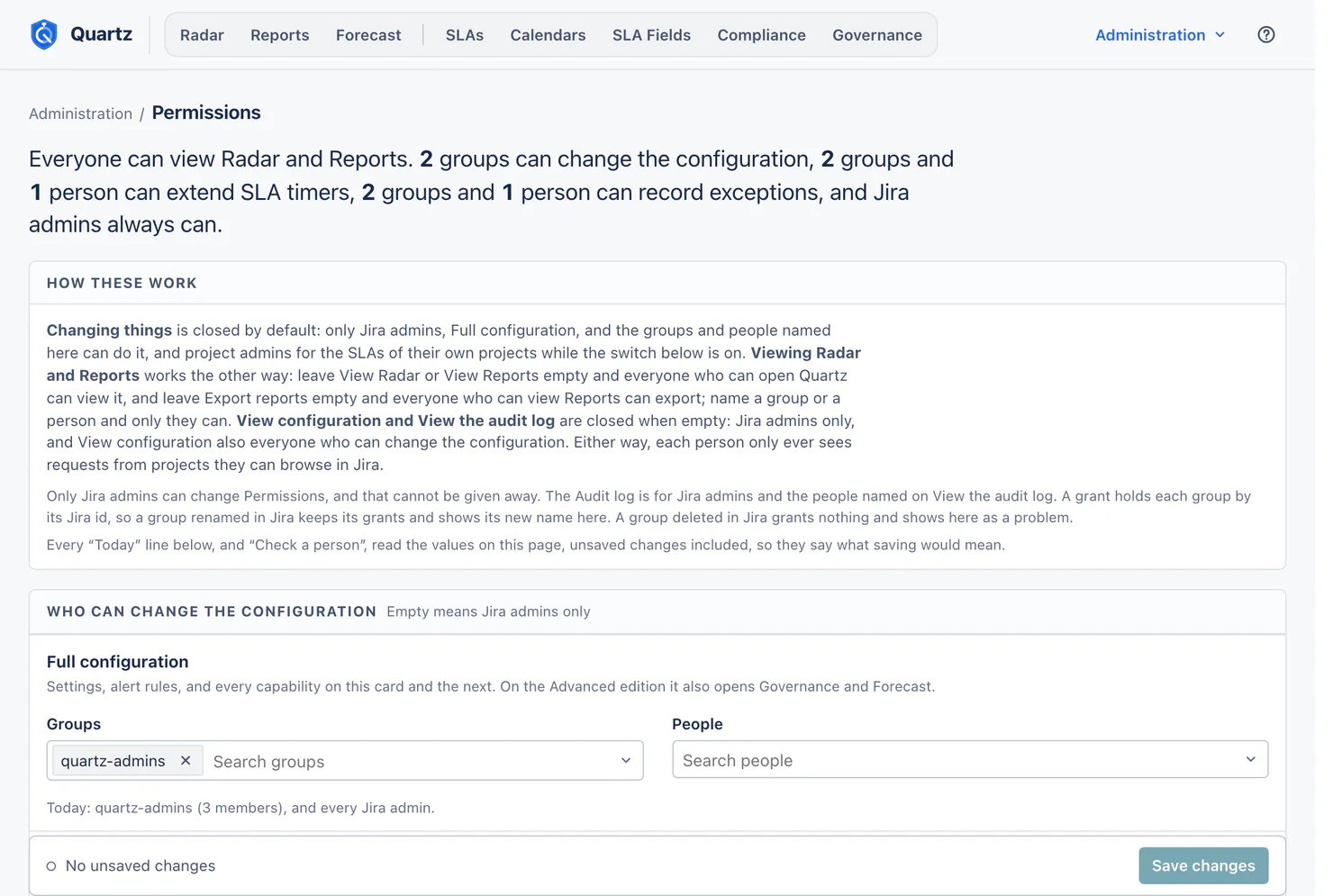
How grants work
- Changing things is closed by default. Only Jira admins, Full configuration, and the groups and people named on a grant can do it (and project admins for the SLAs of their own projects, while that switch is on).
- Viewing Radar and Reports works the other way. Leave View Radar or View Reports empty and everyone who can open Quartz can view it; leave Export reports empty and everyone who can view Reports can export. Name a group or a person, and only they can.
- View configuration and View the audit log are closed when empty: Jira admins only, and View configuration also everyone who can change the configuration.
- Either way, Radar and Reports show each person only the requests they can browse in Jira. Quartz checks this as the person, so every row, chart, drill and export there holds only those requests, and the figures count only those. Some counts are the whole site's and name no request: people who can change the configuration see, for example, how many SLA timers are open on a calendar and Compliance's evidence counts, and a report tells someone who can change all of its SLAs how many more SLA timers are on requests they cannot browse. Governance and The alerts Quartz sent in Settings, which only Jira admins and people granted Full configuration can open, count Quartz's own record for the whole site. Governance lists an entry on a request the reader cannot browse, on the page and in its CSV file, with the request's key, the SLA, who recorded it, when and the reason, but not the request's summary (the page reads "You cannot browse this request in Jira." in its place). The alerts Quartz sent counts alerts on such requests by result and never names them.
- Groups are held by their Jira id, so a group renamed in Jira holds on to its grants and shows its new name here. A group deleted in Jira grants nothing and shows here as a problem, and Configuration health reports it.
- A grant can name up to 500 groups and 2,000 people.
- When a change takes effect. A save here applies to every read and every change at once. Jira sends Quartz no word when a Jira admin role or a group changes, so Quartz asks Jira: every change a person makes asks at once, and a page that only reads may use Jira's recent answer, whether the person is a Jira admin for up to 30 seconds and their Jira groups for up to 10 minutes. A Jira admin role taken away in Jira therefore stops that person's changes at once and their reads within 30 seconds. A change to someone's Jira groups (a group that grants a Quartz permission taken away, or a group named in an Everyone except list added) stops their changes at once and reaches Quartz's read screens within 10 minutes. A refusal is always checked with Jira again first, so a right given in Jira works at once.
- The Jira fields a person can see. Someone who is not a Jira admin is offered and named only the Jira fields Jira lists to them. Quartz reads that list from Jira as the person and uses it for up to 10 minutes, in field pickers and for the field names configuration health shows, so a field Jira hides from them, or gives them, shows in Quartz within 10 minutes. A save always asks Jira at that moment about the fields it names. A Jira admin sees every field, so for them Quartz reads the site's own field list.
- When Jira does not answer. If Quartz cannot check someone's permissions (Jira did not answer, or Jira's hourly limit for apps was reached), the page says "Quartz could not check your permissions" and that their permissions did not change, never that they lack one, and it checks again by itself.
- When Quartz holds back its own checks. Quartz limits how much of Jira's hourly limit for apps these checks may use: for each person 1,200 points a minute and 4,000 an hour (more for a person in more than 50 Jira groups, whose checks cost more), and on Jira's shared limit 16,250 points an hour for the whole site. Past a limit the page says whose checks Quartz is holding back and when it checks again, for example "Quartz could not check your permissions: it is holding back its checks with Jira for your account." and "Your permissions did not change. Quartz checks again by itself at 21:00: this page opens if your account may see it." (for the site: "for this site."). A person past their own limit of a minute waits for the next minute; past their hour, or the site's, for the top of the hour. Past the site's limit every person keeps an allowance (their first 1,000 points of the hour, more in many groups), enough to keep Radar open, so the use of others never locks a person out of reading. On Jira's shared limit, a site where many people work in Quartz at once can reach the site's limit (by our tests, about 14 to 20 people working all hour), and two things can still happen in Quartz 5: two people in about 200 Jira groups who both work in Quartz all hour can reach the site's limit late in the hour, and an account in about 200 groups that keeps calling Quartz just under its limit of a minute can spend the site's checks to within 4,000 points of that limit. A per-site limit (Tier 2) removes both, because it has no site limit on these checks. See Limits and data retention.
Every "Today" line on the page, and Check a person, read the values on the page, unsaved changes included, so they say what saving would mean.
The grants
Who can change the configuration (empty means Jira admins only):
| Grant | What it opens |
|---|---|
| Full configuration | Settings, alert rules, and every capability on this card and the next. On the Advanced edition it also opens Governance and Forecast. |
| Manage SLAs | The SLAs page, the SLA editor and Compliance. |
| Manage calendars | The Calendars page: working days, hours, breaks, time zones and holiday schemes. |
| Manage SLA fields | The SLA Fields page, its mappings and field updates. Creating a new Jira field still needs Jira admin rights. Someone who is not a Jira admin can pick only a Jira field that Quartz created, or one that an SLA field they manage already writes into, and a grant limited to some projects or SLAs has to pick Chosen SLAs only for the SLAs an SLA field reads. See SLA Fields. |
| Export, import and backups | Downloading the configuration file, importing one, and restoring a backup. Permissions travel only in a Jira admin's file. |
Who can change SLA timers (empty means Jira admins only):
| Grant | What it opens |
|---|---|
| Extend SLA timers | Extending an SLA timer and taking an extension back, on a request panel and from Radar. |
| Record exceptions | Recording an exception and lifting one, on a request panel and from Radar. |
Who can read the configuration (empty means Jira admins only; View configuration also includes everyone who can change the configuration):
| Grant | What it opens |
|---|---|
| View configuration | Reading SLAs, calendars, holiday schemes, SLA fields and a summary of Settings, without changing them. |
| View the audit log | The Audit log: changes to Quartz's configuration, who made them and when. |
Who can view (empty means everyone):
| Grant | What it opens |
|---|---|
| View Radar | Radar, and Radar's own actions: mark reviewed and take a request. |
| View Reports | Reports and its saved views. |
| Export reports | Downloading reports as CSV, Excel, PDF and chart files. |
Limited to: projects or SLAs
Manage SLAs, Manage calendars, Manage SLA fields, Extend SLA timers, Record exceptions and View Reports can each be Limited to These projects or These SLAs, instead of Every project and SLA.
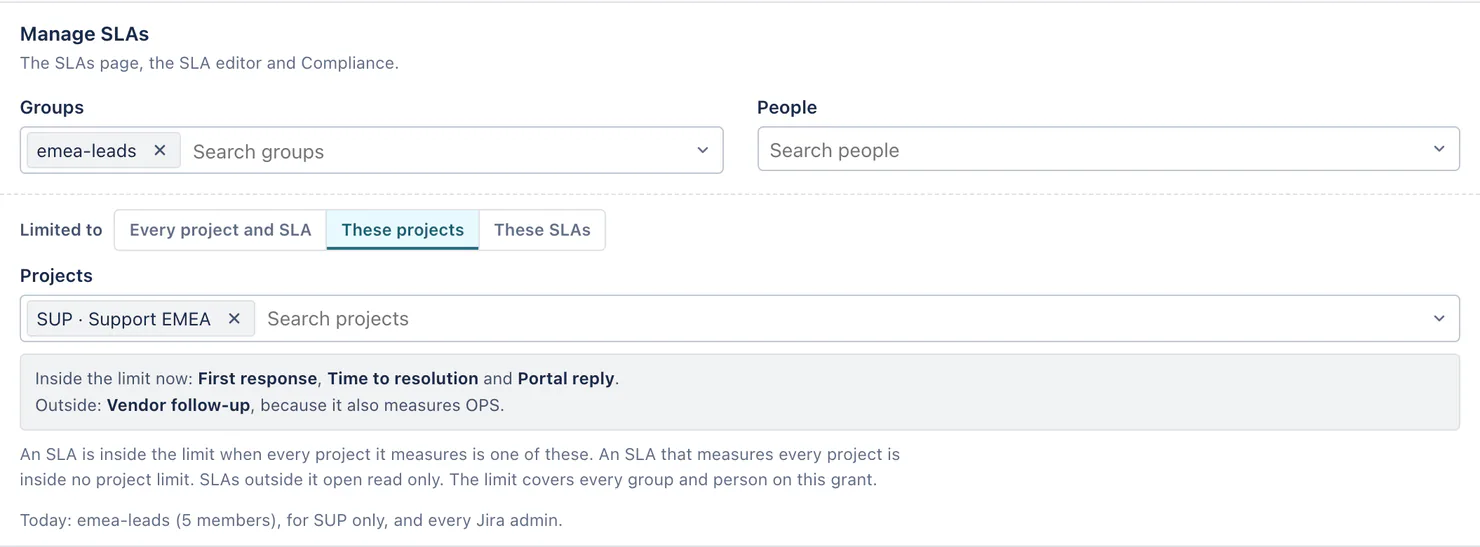
- An SLA is inside a projects limit when every project it measures is in the grant. An SLA that covers every project is inside no projects limit.
- A calendar is inside a limit only when every SLA that uses it is, and an SLA field only when every SLA it reads is. A holiday scheme or a working-time scheme, a new one included, can be saved, copied or deleted under a limit only when the limit takes in every SLA on the site. Shared objects therefore need an unlimited grant.
- A person limited to some projects can make an SLA measure only those projects, and is told so on the Scope field.
- In an import or a restore, what the file or the backup would change outside the person's limits stays as this site has it: its row reads "Outside what you may change" and offers no choice, and the rest can still be imported or put back. If an object the person chose (with Put back one thing, say), or one the import or restore was about to change, is outside their limits by the time it starts or runs, the whole import or restore is refused and nothing changes.
Everyone except
View Radar, View Reports and Export reports each have Everyone except: groups and people left out of the grant, even when the grant is empty (everyone).
Project admins manage SLAs for their own projects
When this switch is on, a person with Administer Projects in Jira can change an SLA when every project it measures is one they administer. They can choose any calendar for it but cannot change a calendar, they cannot add a project they do not administer, and it does not let them read other SLAs. Quartz asks Jira which projects the person administers every time they change an SLA, and a page that only reads may use Jira's answer for up to 30 seconds. The switch is off by default.
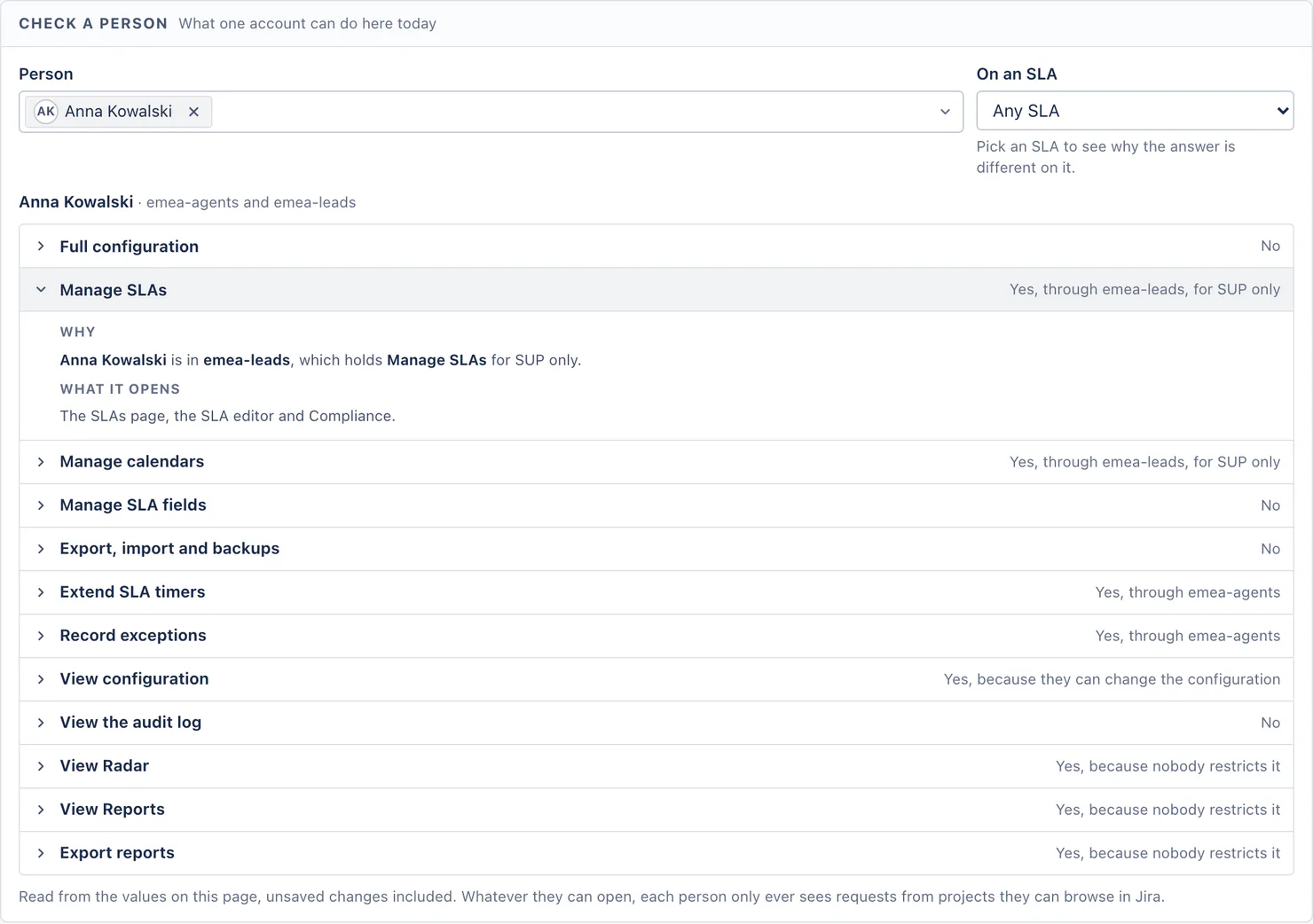
Check a person
Pick a person to see which capabilities they hold today, and where each one comes from: Jira admin, Full configuration, a group, their own name, the project admin switch, or nothing. Pick an SLA to see why the answer is different on it. The answers use exactly the rules the server applies. The person's header says whether they are deactivated, which groups they are in, and whether they are a Jira admin. Check a person always asks Jira, so when it finds that someone is no longer a Jira admin, Quartz stops using its earlier answer for them at once.
After the upgrade to Quartz 5
Your existing grants carry over:
- The previous version's one grant to extend and to mute, "Extend on issues", became two grants, Extend SLA timers and Record exceptions, and every group and person that held it holds both.
- Everyone with Full configuration also holds Export, import and backups.
- Export reports starts open to everyone who can view Reports.
- View configuration and View the audit log start with nobody beyond who could already do those things.
- Project admins manage SLAs for their own projects starts off.
Nobody gains a permission they did not have in the previous version.
Every change is recorded
Saving Permissions is recorded in the Audit log with every grant before and after, and a backup is saved first. When someone else saved Permissions after you opened the page, Quartz says so and asks you to reload, instead of overwriting their change.
Something unclear or wrong on this page? Contact support.