Install Quartz
Quartz installs from the Atlassian Marketplace as a Forge app and runs entirely inside Atlassian's cloud — there is no separate server to provision and no data leaves your site.
Install from the Marketplace
Quartz is an Atlassian Forge app for Jira Cloud. You install it the same way as any Marketplace app, from inside your Jira site. You need to be a Jira administrator to install it.
Open the Marketplace listing
From Jira, open Apps and find Quartz on the Atlassian Marketplace, or visit the listing directly. Choose Get app / Install.
Review the access request
As a Forge app, Quartz asks you to consent to a small set of scopes before it installs. Review them (see Access and scopes) and confirm.
Finish the install
Atlassian provisions the app on your site. Quartz brings its own storage and runtime, so there is nothing else to set up — open the app and start configuring SLAs.
Quartz works on any Jira project — Jira Software, Jira Work Management, and Jira Service Management — so you can track SLAs on issues regardless of the project type.
Editions: Standard and Advanced
Quartz ships in two editions. The whole SLA engine — business-hours calendars, pause-aware timers, the Radar, Reports, CSV export, the compliance-coverage view, and the in-Jira field write-back — is in Standard. Advanced adds the AI features plus Breach Forecasting and the Governance review.
| Capability | Standard | Advanced |
|---|---|---|
| SLA timers, calendars, Radar, Reports, CSV export | Yes | Yes |
| SLA Fields write-back, Compliance coverage | Yes | Yes |
| Breach Forecasting | — | Yes |
| Governance / exception review | — | Yes |
| AI summaries, explanations, NL query, SLA setup assistant, Rovo agent | — | Yes |
Forecast and Governance are Advanced-only features, as are all the AI features; Standard has no AI at all.
On a Standard install the Advanced features stay visible but locked, marked with an AI: Advanced or Advanced lozenge, so you can see what upgrading would add. See Editions for the full breakdown.
How licensing works
Licensing is handled by the Atlassian Marketplace — there are no licence keys to enter in Quartz. Your edition is read straight from the Marketplace licence attached to your install.
In production, the Marketplace licence is the single authority for whether AI (the Advanced edition) is on. A production install with no licence is Standard, and no in-app setting can unlock Advanced without the paid licence.
Outside production (development or staging sandboxes), an admin developer override in Settings can flip AI on or off so you can build against, or demo, either edition. That override only appears in non-production environments and never applies to a live production site.
Trying it free
Quartz follows standard Atlassian Marketplace trial and billing. Start a free trial from the Marketplace listing to evaluate Advanced; when the trial ends, billing follows your Atlassian account and the edition reflects whatever licence is active. To compare editions hands-on during a trial, the locked Advanced sections in a Standard view show exactly what each feature does before you commit.
Where Quartz appears after install
Once installed, Quartz shows up in several places across Jira:
| Surface | Where | What it is |
|---|---|---|
| Quartz hub | Apps menu (global page) | The app home, with a left rail grouped into MONITOR (Radar, Reports, Forecast) and CONFIGURE (SLAs, Calendars, SLA Fields, Compliance, Governance, Settings, Permissions, Audit log). Sections are gated by your capability and edition, and the hub remembers the section you left off on. |
| Issue SLA panel | On every applicable issue | The panel labelled SLA (titled Quartz — SLA), with one tile per SLA goal: status, progress, elapsed/remaining/goal, a Why this status? explainer, extend and mute, and a related-issues rollup. |
| Dashboard gadget | Jira dashboards | The Quartz — SLA gadget — a live health view or analytic reports, configured in its edit panel. |
| Custom fields | JQL & Jira Automation | Four read-only computed fields (Quartz SLA Status, Target, Remaining, Breached count) plus any fields you map under SLA Fields. |
| Rovo agent Advanced | Rovo Chat | The Quartz SLA agent. It appears only when Rovo is activated on your site, and its actions answer only on Advanced. |
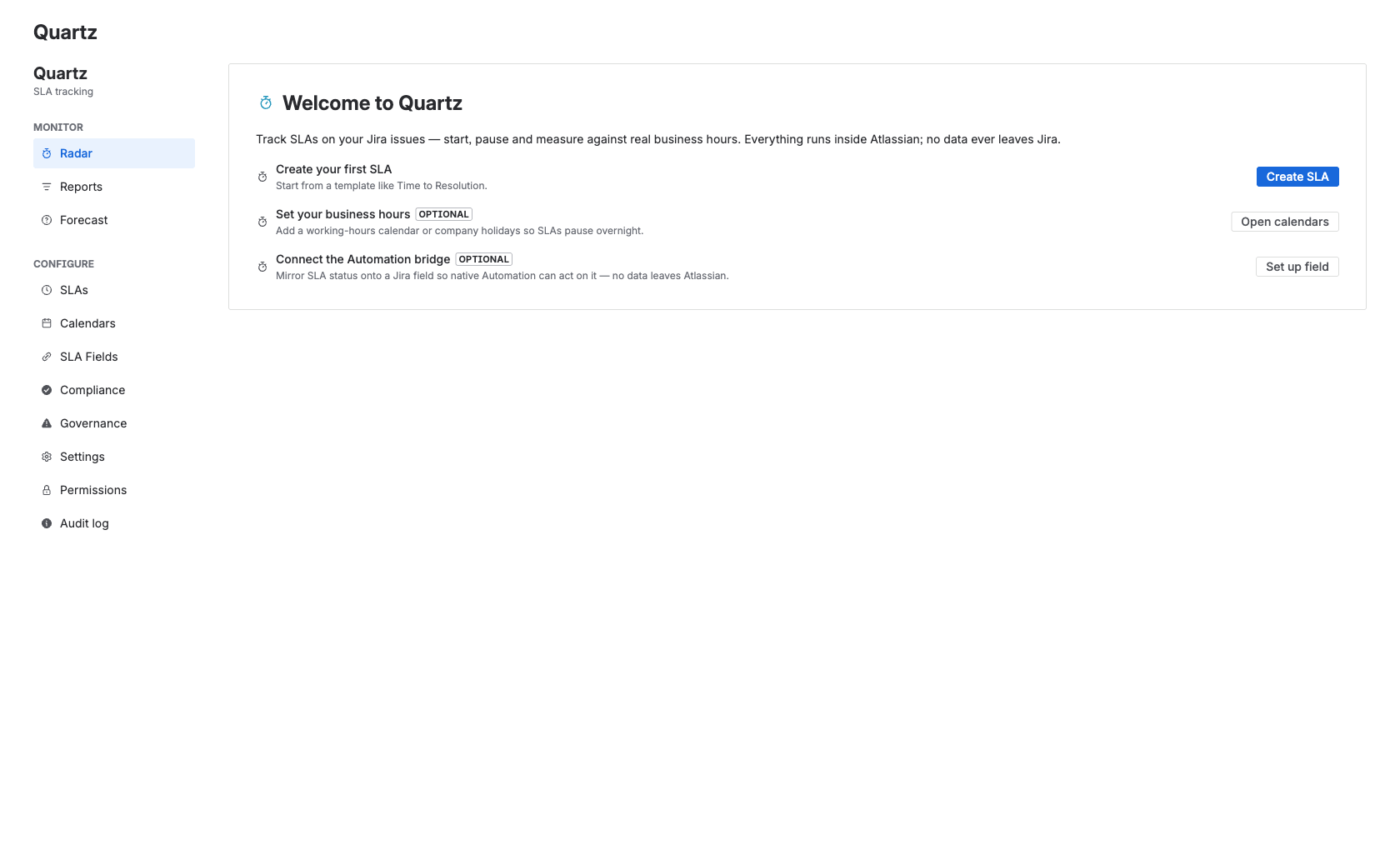
The first time a configurer opens the Radar, a dismissible Getting started checklist appears: create an SLA, set up business hours, and map an SLA field. The steps tick off automatically from your real configuration. See Create an SLA to begin.
Access and scopes
At install you consent to these Forge scopes. They are the only access Quartz holds, and everything runs inside Atlassian.
| Scope | What it is for |
|---|---|
read:jira-work | Read issue data to compute SLA status (computed on demand — nothing is stored or backfilled). |
write:jira-work | Write the mapped SLA values back into your Jira fields via the scheduled write-back sweep. |
manage:jira-configuration | Create the Quartz custom fields when you ask it to, and manage field configuration. |
read:jira-user | Resolve actors to display names and check the caller's group membership and admin permission. |
storage:app | Store Quartz's own configuration in Atlassian Forge storage. There is no external database. |
Quartz reads issue data only to compute SLAs and writes back only its own SLA fields. There is no external backend, no outbound webhook, and no data egress — issue data never leaves Atlassian's cloud. Even the Advanced AI runs on Atlassian-hosted Claude, so prompts stay inside Atlassian too. For teams under ITIL, ISO 20000 or SOC 2, that is one less vendor to assess.
Quartz reads as the calling user for any user-facing scan, so Jira itself enforces who can see which issues — installing the app never widens anyone's visibility. See Security & data posture for the full picture and Permissions for who can configure what.
Uninstalling and your data
You uninstall Quartz from the same Apps management area you installed it from. Because SLA status is recomputed on demand and never backfilled into Jira, removing Quartz stops the timers and removes the Quartz screens; your issues, changelogs and comments are untouched.
Quartz's own configuration (SLA definitions, calendars, permissions, settings and the audit log) lives in Forge storage and is removed when the app is uninstalled. Any values the write-back sweep wrote into your own Jira fields remain in Jira as ordinary field data — they simply stop refreshing.
The four built-in computed fields stop resolving once the app is gone. If you mapped SLA values onto a Quartz-created custom field and want that field removed afterwards, a Jira administrator can delete it in Jira's field administration.
Was this page helpful? Yes · No · Contact support