All documentation pages
Getting started
Quartz measures service levels on your Jira requests. You set what each SLA measures, which working hours count and what counts as late; Quartz starts an SLA timer on every request the SLA covers, shows each one live, warns before it breaches, and reports how every SLA did.
This page takes you from install to your first measured SLA.
What Quartz gives you
| Page | What it is for |
|---|---|
| Radar | Every open SLA timer, at the moment it breaches, with the decisions to make today. |
| Reports | Met and breached, by SLA, person, priority and period, with the detail of every SLA timer. |
| Forecast | Every open SLA timer, scored against your resolved history (Advanced edition). |
| SLAs | Goals, timer rules and scopes. |
| Calendars | Working hours, holidays and the schemes they share. |
| SLA Fields | SLA timer values written into Jira fields, for JQL, boards, queues and Jira Automation. |
| Compliance | The ITIL, ISO/IEC 20000 and SOC 2 controls your SLAs put a timer on. |
| Governance | How extensions and exceptions were used (Advanced edition). |
| Settings | Defaults, configuration health, alert rules, the customer portal and backups. |
| Permissions | Which groups and people can view, and who can change. |
| Audit log | Changes to Quartz's configuration: who, when and what changed. |
On every request an SLA covers, the Quartz SLA panel shows its SLA timers, and on a service project the customer portal can show them to customers.
Before you begin
- Who can set Quartz up. Jira admins can open and change everything. A Jira admin can also grant Full configuration, or a narrower grant such as Manage SLAs or Manage calendars, to groups and people on the Permissions page.
- Which projects. Quartz measures requests in any Jira project. Request types and the customer portal belong to Jira Service Management projects; everything else works in every project type.
- Your time zone. Quartz prints every time in your site's time zone, which is the time zone of your default calendar. Each person can choose to see times in their own zone instead: Help > Show times in my zone.
Install or upgrade
-
Install Quartz from the Atlassian Marketplace, or approve the Quartz 5 update if your site runs an earlier version. The update asks for two new permissions and a database; the release notes say why.
-
Open Apps > Quartz in Jira. In Atlassian Administration, under Connected apps, the menu on Quartz's row also offers Configure, which opens Settings, and Get Started, which opens this checklist. Each opens at its own address; any other page you open from there opens on the Quartz page.
-
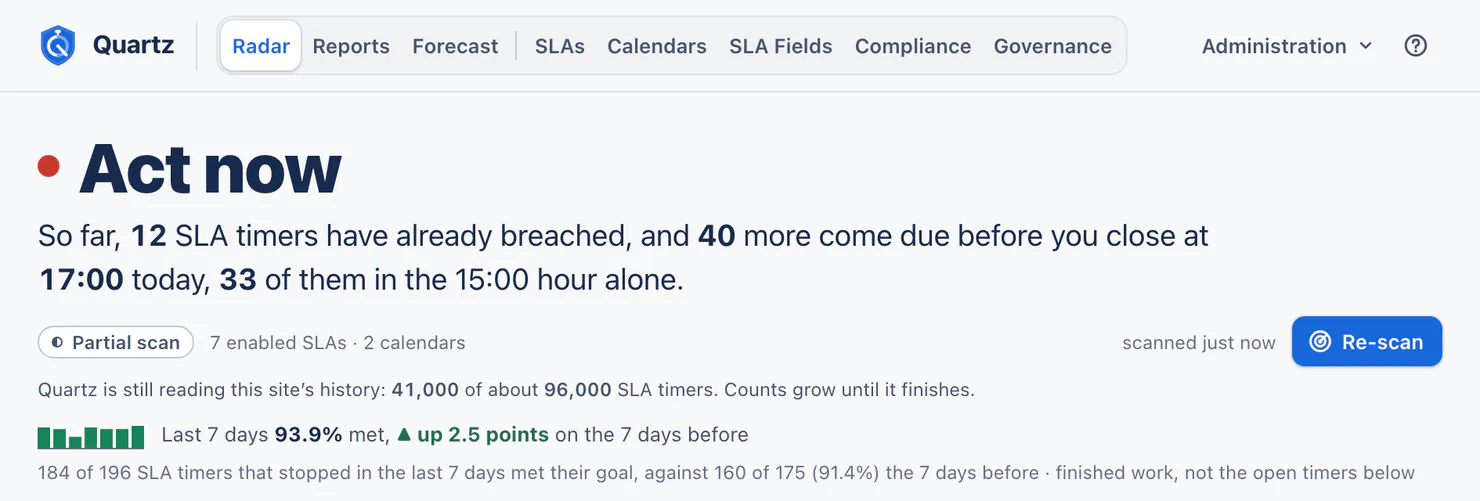
Quartz reads your site's history once, open requests first. Until it finishes, pages that count say how far it has got:
Quartz is still reading this site's history: 41,000 of about 96,000 SLA timers. Counts grow until it finishes.
Every page is usable while it reads. Open requests come first, so Radar, the fields and the alerts are whole early. A site of 100,000 requests takes about 32 to 50 hours on Jira's shared limit for apps, where the read uses at most three quarters of this site's share each hour so your screens keep the rest, and about 4.5 to 6 hours on a per-site limit, longer when several SLAs cover the same requests. These are estimates, worked out from a read of 3,000 requests on a test site. If the read waits for Jira's hourly limit for apps, the line says why and when it goes on. See Limits and data retention.
The four setup steps
Help > Getting started holds a checklist that ticks itself as your setup changes. Nothing on it blocks the rest of Quartz: every page stays open while you work through it.
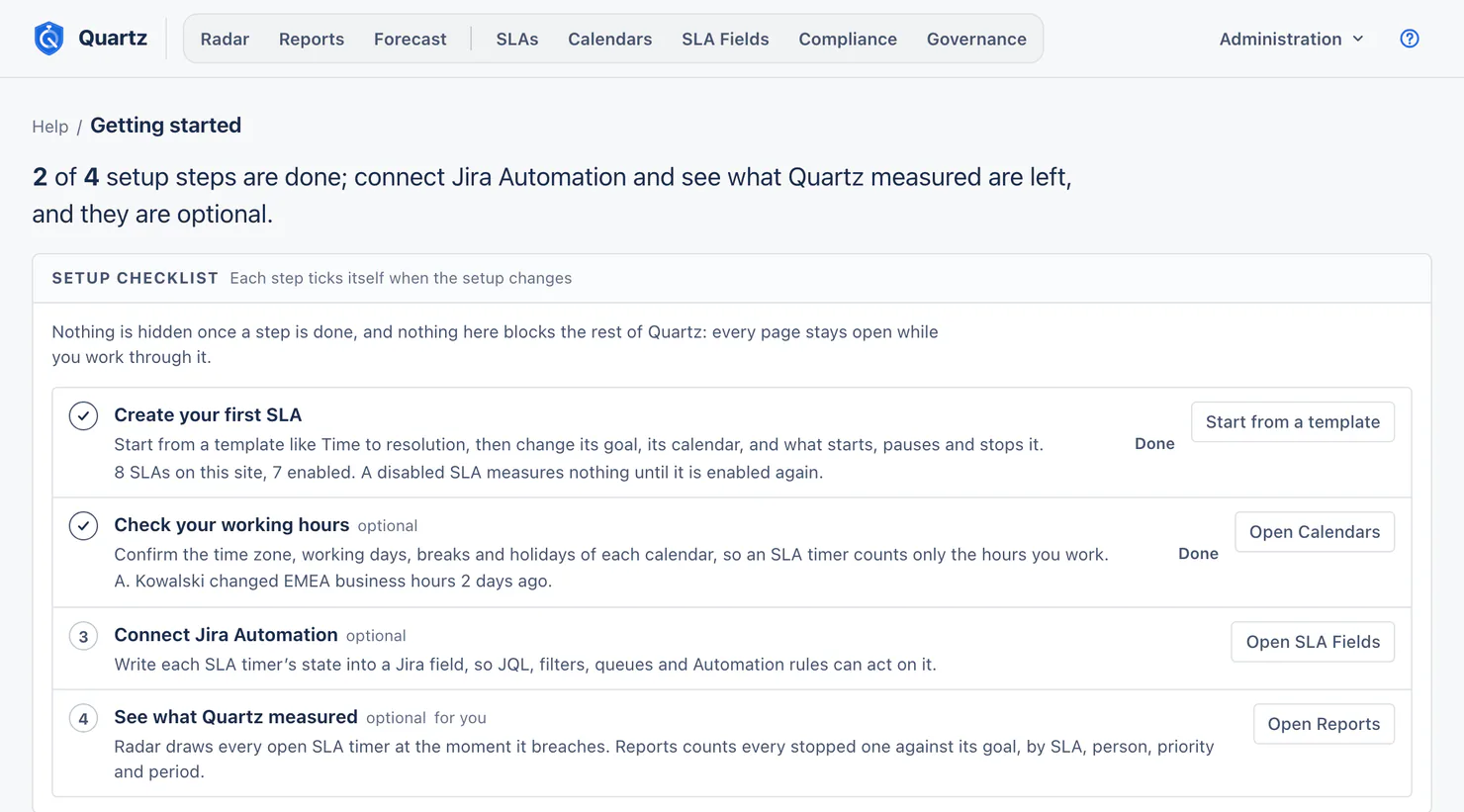
1. Create your first SLA
Open SLAs > Start from a template and pick one of the five templates (Time to first response, Time to resolution, Incident resolution, Service request fulfilment, Security incident response), or Create SLA for a blank one. On the Advanced edition you can also Describe your SLA in your own words and Quartz drafts it in the editor. Then set:
- What this SLA measures: projects, request types, work types, priorities, Organizations, components, and an optional JQL filter.
- Timer rules: when the SLA timer starts, pauses, stops and resets.
- Goal: working time, working days, a goal read from a field, a date on the request, or no goal.
- Calendar: which working hours count.
Nothing is saved until you choose Create SLA. See SLAs.
2. Check your working hours (optional)
Open Calendars and confirm the time zone, working days, breaks and holidays of each calendar, so an SLA timer counts only the hours you work. You can add a country's public holidays in a few clicks. See Calendars.
3. Connect Jira Automation (optional)
Open SLA Fields to write each SLA timer's state into a Jira field, so JQL, filters, queues and Automation rules can act on it. See SLA Fields and Automation recipes.
4. See what Quartz measured (optional)
Radar draws every open SLA timer at the moment it breaches. Reports counts every stopped one against its goal, by SLA, person, priority and period. See Radar and Reports.
Where things are
- The tab row starts with the Quartz mark, which opens your home page, and has three groups: Monitor (Radar, Reports, Forecast), Configure (SLAs, Calendars, SLA Fields, Compliance, Governance) and Administration (Settings, Permissions, Audit log). Each person sees only the pages they may open. On a narrow window the icons go first, then the tab row folds into menus.
- Help holds Getting started (for people who can change part of the configuration), Quartz documentation, What's new in Quartz 5 (it opens by itself once for each person on a site that ran Quartz before Quartz 5), Contact support, and Show times in my zone. The foot of the menu names your Quartz version and edition.
- Deep links work. Every page, every Reports view and every filter state has its own address, so you can bookmark it or send it. Back and Forward move between Quartz pages. A person who follows a link to a page they may not open sees which pages are open to them.
- Unsaved changes are safe. Leaving a page with unsaved changes asks first. Changes that could not be saved are held as a draft you can restore later.
Editions
Quartz comes in two editions. Your Marketplace licence decides which one your site runs.
| Standard | Advanced | |
|---|---|---|
| SLAs, calendars, Radar, Reports, SLA Fields, Compliance, alert rules, the request panel, the portal, the gadget, exports, schedules, backups, Permissions, Audit log | Yes | Yes |
| Forecast | Yes | |
| Governance | Yes | |
| AI: a written summary on Reports, a question in your own words turned into filters, an SLA drafted from a description, the explanation of an SLA timer on the request panel | Yes | |
| The Quartz SLA agent in Rovo | Yes |
Forecast and Governance use no AI: both are counted from your site's own recorded history. The AI features run on Atlassian-hosted models.
The words Quartz uses
| Word | Meaning |
|---|---|
| SLA timer | One SLA measuring one request. A request can have several. |
| On track, At risk, Critical, Breached | A running SLA timer's state, from the thresholds the SLA sets. |
| Met, Breached | A stopped SLA timer's outcome. |
| Measuring, Measured | An SLA with no goal: it never breaches and is in no met rate. |
| No date set | An SLA whose goal is a date on the request, while that date is empty. |
| , paused | Added while the SLA timer is paused, for example "At risk, paused". |
| Excepted | Left out of breach counts, Radar, Reports and SLA fields by an exception someone recorded. |
| Working time | Time the SLA timer's calendar is open, less the time it was paused. |
Next
- SLAs: every goal, rule and scope in detail.
- Settings and alert rules: configuration health, alerts and the customer portal.
- Permissions: who can see and change what.
- Support: what to send when you need help.
Something unclear or wrong on this page? Contact support.