All documentation pages
Calendars
Calendars sets the working days, hours, breaks, time zones and closed days that SLA timers count, and the holiday schemes and working-time schemes calendars share.
Jira admins, Full configuration and the Manage calendars grant can change calendars. View configuration and Manage SLAs can read them. A grant limited to some projects or SLAs can change a calendar only when every SLA that uses it is inside the grant, so a shared calendar needs an unlimited grant.
The Calendars page
The lead counts the calendars. With one or two, it names each one, how many SLAs measure on it, and whether it is open now and until when, for example "2 calendars. EMEA business hours measures 4 SLAs and closes at 17:00 today; Always on (24/7) measures 3 SLAs and never closes." With three or more, it counts the enabled SLAs too and names one calendar, the one that measures the most of them. While no SLA is enabled, it says so and names at most two calendars.
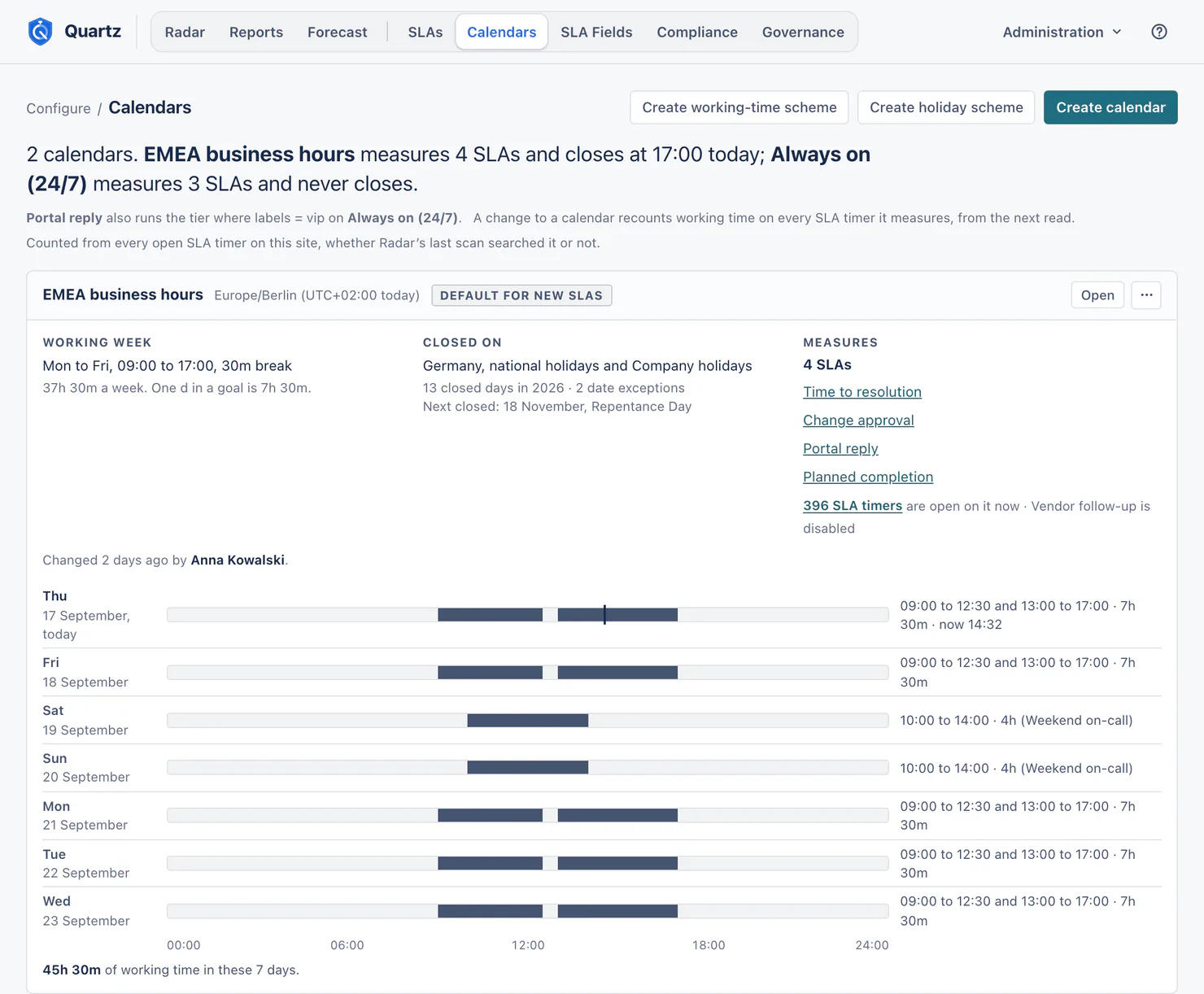
Each calendar card shows:
- its time zone and whether it is the Default for new SLAs;
- its working week ("Mon to Fri, 09:00 to 17:00, 30m break") and how long one d in a goal is;
- what it is closed on: its holiday schemes, the closed days this year, its date exceptions and the next closed day;
- which SLAs and goal tiers measure on it, and how many SLA timers are open on it now. That number is counted from every open SLA timer on this site, whether Radar's last scan searched it or not, and opens those SLA timers;
- the next seven days, open and closed, drawn to scale.
Below the calendars: Holiday schemes and Working-time schemes, each with the calendars that use it, its next day, and the SLA timers open on it. Create calendar, Create holiday scheme and Create working-time scheme are at the top.
People who can read but not change calendars see the page without counts.
A calendar
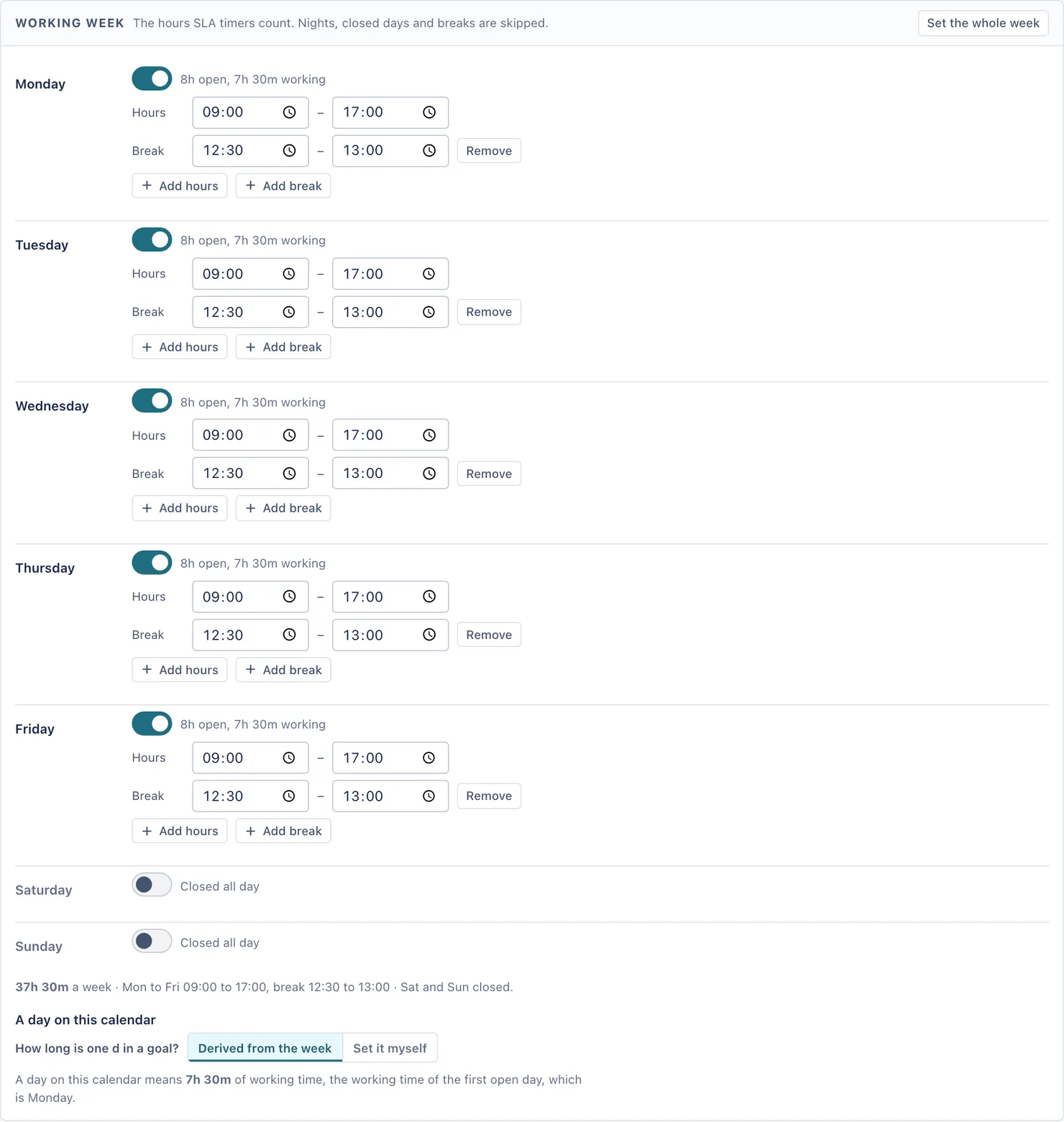
- Name and time zone. Every open hour, break, holiday and exception is read in the calendar's own zone. Default for new SLAs: only one calendar can be the default, so turning this on turns it off on the other one.
- Working week. For each day: its hours (several spans if you like) and its breaks. Set the whole week sets all seven days from one of five ready-made weeks, or copies Monday's hours and breaks to every open day.
- A day on this calendar. How long one d in a goal is: Derived from the week (the working time of the first open day) or Set it myself, for example 8h.
- Holidays. The holiday schemes this calendar closes on.
- Working time added. The working-time schemes this calendar also opens on.
- Date exceptions. One date or a run of days, with its own hours, or closed. A date exception can have several spans and breaks, and can repeat every year (29 February applies in leap years only). A run of more than 60 days asks "Is this range right?" before it saves.
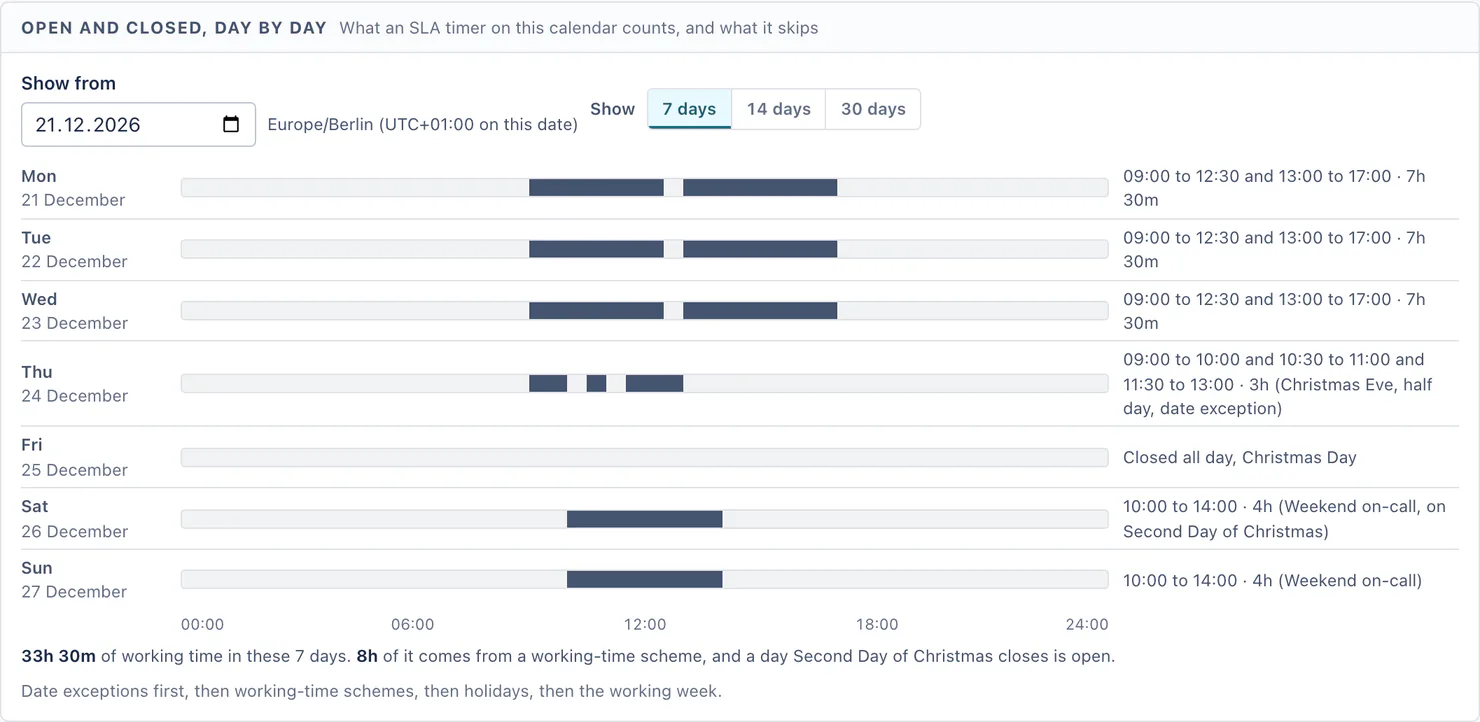
- What decides a day. Date exceptions first, then working-time schemes, then holidays, then the working week. A date exception decides the whole day. Without one, a holiday closes the working week's hours, and a working-time scheme's hours count on top of whatever is left.
- What this calendar measures and Open and closed, day by day: a preview of 7, 14 or 30 days from any date, worked out from the form before you save. It draws exactly what an SLA timer on this calendar counts.
From when the new hours apply
When you change the hours of a calendar SLAs measure on, the save asks From when do the new hours apply?
- Now: the open SLA timers on the calendar count the new hours from this moment. What they have already counted stays as it is, and the ones that already stopped keep their result.
- From a date: the new hours start at 00:00 on the day you choose, in the calendar's zone. Until then every SLA timer counts the hours the calendar has today.
- From a past date: the new hours are treated as if they had always applied from that day. Open SLA timers are counted again from it, and so are the ones that already stopped: their working time, their due times and whether they breached or met can all change. The count runs in the background, and you can leave the page.
Earlier versions of a calendar stay listed on it under Previous hours, oldest first, and cannot be changed. In Reports, an SLA timer's row names the SLA definition it was measured under, for example "Measured under the definition of 3 Sep 2026." It does not name which version of the calendar's hours it counted.
The calendar editor says how many SLA timers already stopped on the calendar, for example "480 SLA timers that already stopped on it keep their result, unless you recount them." A calendar can be counted again from a past date on its own, without changing any setting: nothing about the hours changes, and Quartz measures every SLA timer on the calendar again from the day you choose.
Deleting or duplicating a calendar
Duplicate makes a copy to change, measuring nothing. Delete asks which calendar its SLAs and goal tiers move to, moves every one of them, and records one audit entry naming them.
Holiday schemes
A holiday scheme is a shared list of closed days. Every calendar that uses it is closed all day on each of them, so a closed day is entered once for every calendar.
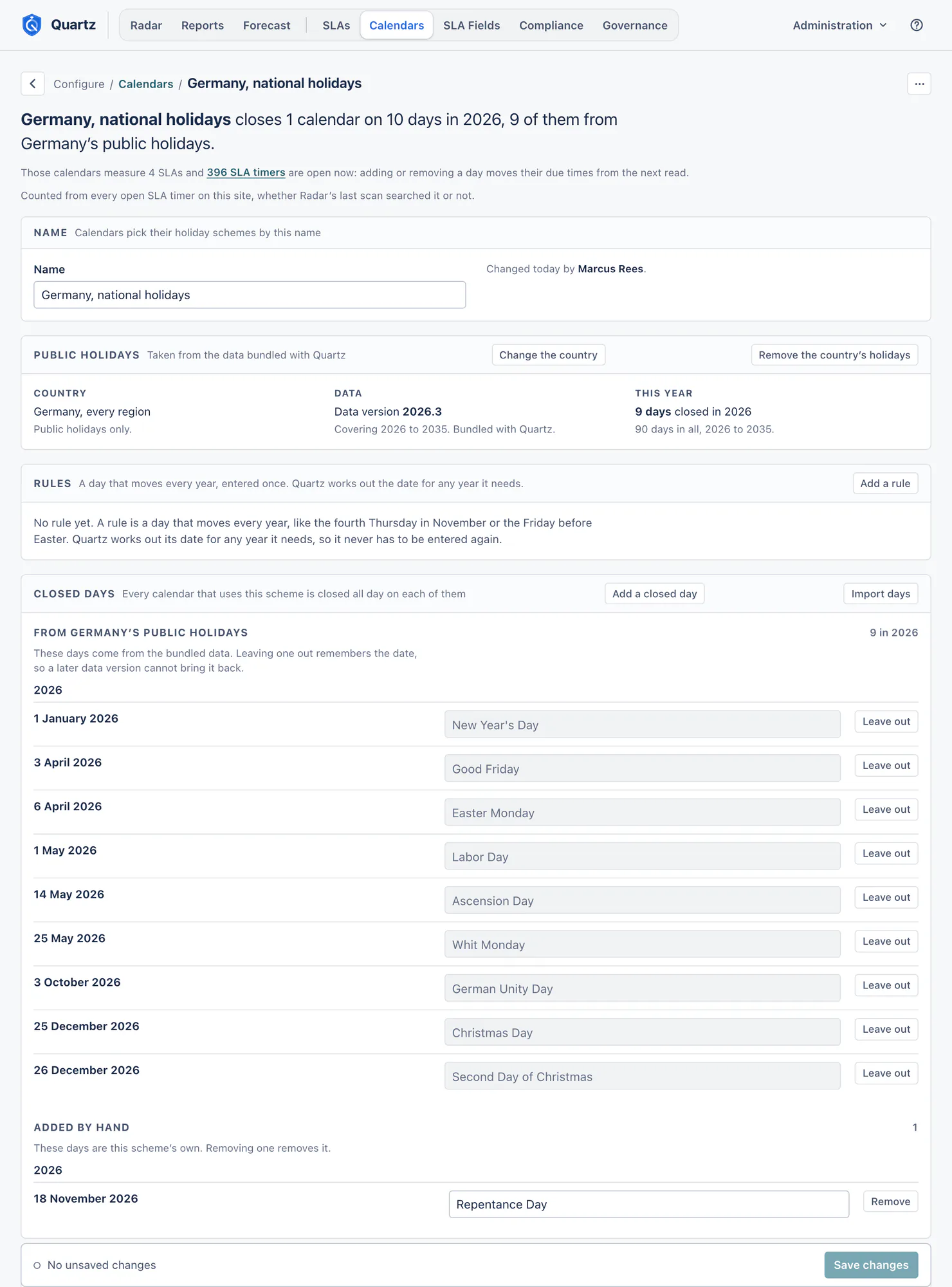
- Public holidays: Add a country's public holidays, taken from the data bundled with Quartz. Quartz suggests the country from the calendar's time zone, and a region only when the zone names one; otherwise it opens on every region and says so. You see the days before you add them, can opt out of any day, and the days you add by hand stay apart. The card names the data version and the years it covers, and when a later Quartz release updates the data it names the days added, moved and gone. Health checks that a scheme's data is current.
- Rules: a day that moves every year, entered once, like the fourth Thursday in November or the Friday before Easter. Quartz works out its date for any year it needs.
- Closed days: add a day by hand, or Import days from an ICS or CSV file (a header row is skipped; an ICS file is read for its all-day events, their dates and names). You see what the file holds before anything is stored.
- Export as ICS, in a scheme's menu, saves it as a calendar file for this year, or for this year and next, with every rule and country day worked out into real dates.
Removing days that have passed makes the calendar smaller and changes no SLA timer that has already stopped.
Working-time schemes
A working-time scheme opens hours on top of a calendar's working week, for example weekend on-call or year-end cover. Each span opens hours on chosen weekdays or on one date. A working-time scheme opens hours, it never closes them, and a date exception still wins over it. It opens nothing until a calendar keeps it under Working time added.
After the upgrade to Quartz 5
Your company holidays became a scheme called Company holidays, used by every calendar that used them, and each calendar's own holidays became a scheme called <calendar name> holidays. Nothing a calendar closes on changed. One calendar is the Default for new SLAs: the one that was the default, else the first.
Questions
Why did the count on a calendar change when I moved an SLA? The count is every open SLA timer measured on that calendar now. A move made on the page moves the count at once. Right after you move an SLA's goal to another calendar in the SLA editor, Calendars shows it: a Moved. band says how many of that SLA's open SLA timers are counted on the new calendar from this moment, the lead says the counts are from the configuration as it is now, and the SLA reads "moved here just now" on the calendar it moved to. The SLA timers themselves are recomputed against the new hours in the background, and the due times on Radar and in Reports move at the next read.
Why is a d in a goal 7h 30m? A goal in days counts working days of the calendar. With a 9 to 17 day and a 30 minute break, one d is 7h 30m. Set A day on this calendar yourself if your goals mean something else.
A calendar I deleted is still named by an SLA. An SLA whose calendar is gone falls back to the first calendar Quartz stores until someone points it at another one, and Configuration health reports it.
Something unclear or wrong on this page? Contact support.